Welcome and Sign-up
The first time you open Slowchat, you start on the welcome page and create an account with your phone number. Your phone number is only used to log in and recover your account. It is never shown to other users.
Where to find it
Open the app. On first launch, or after you log out, you land on the welcome page.
Steps
-
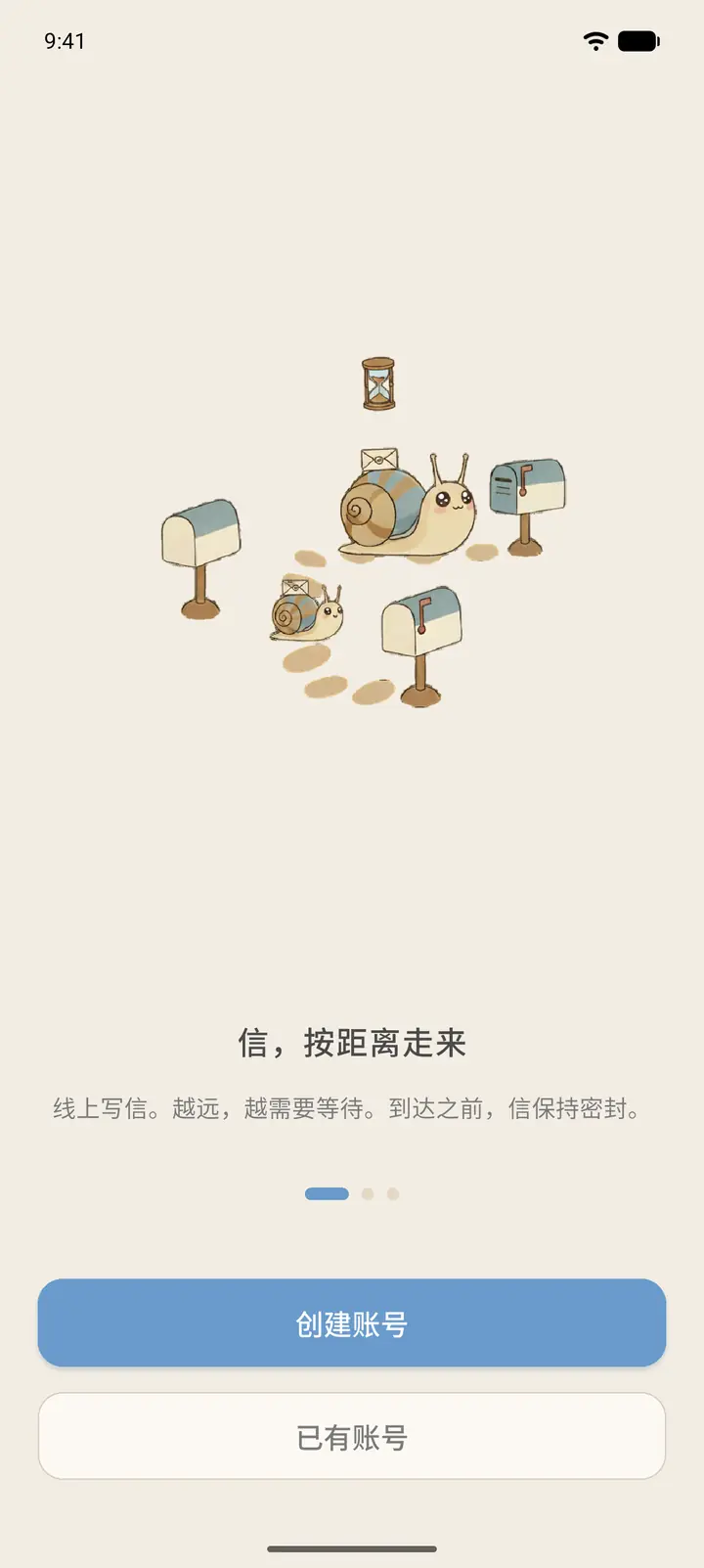
The welcome page introduces how Slowchat works with three illustrated screens: letters travel to you over the distance between you and your pen pal, and the farther apart you are, the longer you wait. Swipe left to see all three screens. Two buttons are below: Create Account (「创建账号」) is for new users and I have an account (「已有账号」) is for existing users (see the next chapter). Tap Create Account.
-
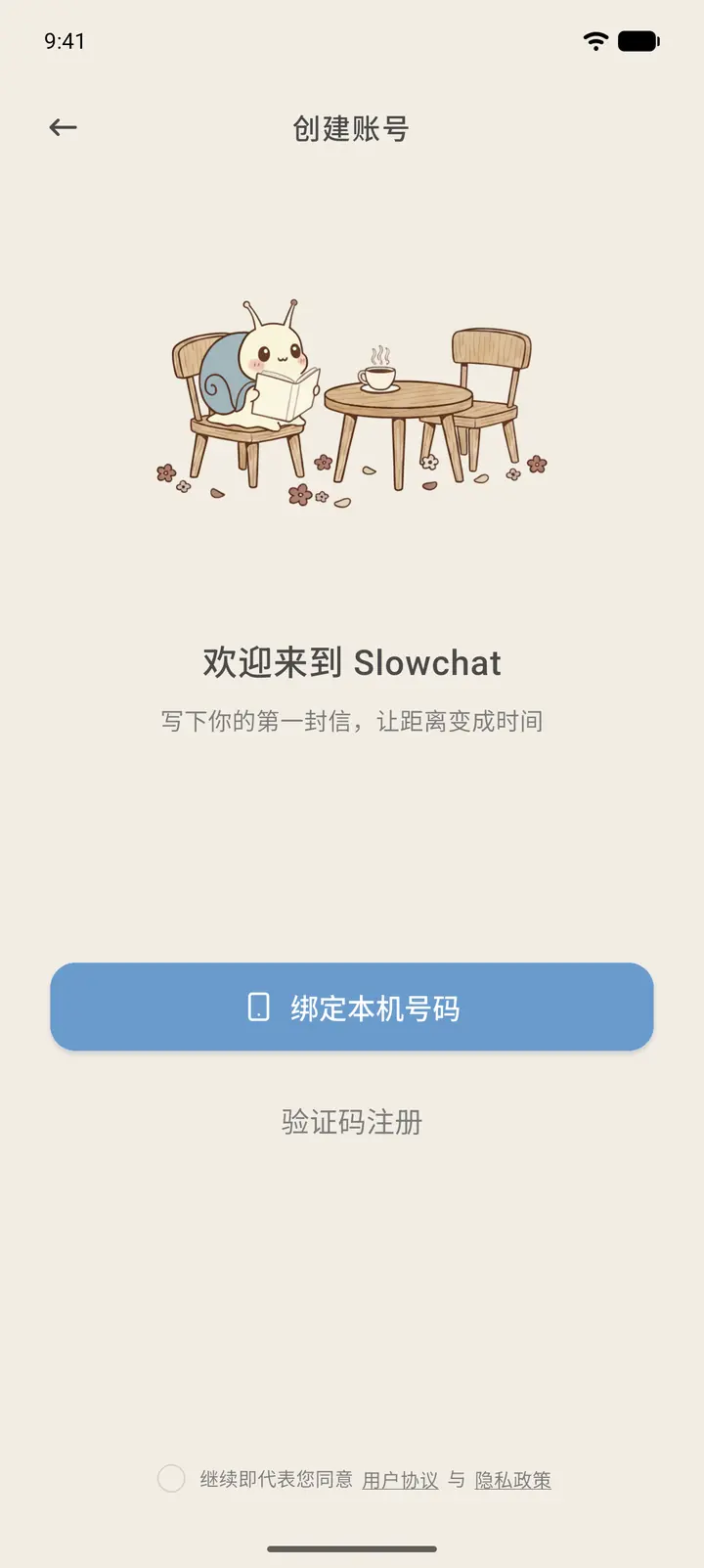
The Create Account page offers two ways to sign up: Link this number (「绑定本机号码」) reads the number on this phone and signs you up in one tap, and Verify code sign up (「验证码注册」) lets you enter a phone number and receive a verification code. At the bottom, you must first tick the box to agree to the User Agreement (「用户协议」) and Privacy Policy (「隐私政策」) before you can continue. Tap Verify code sign up.
-
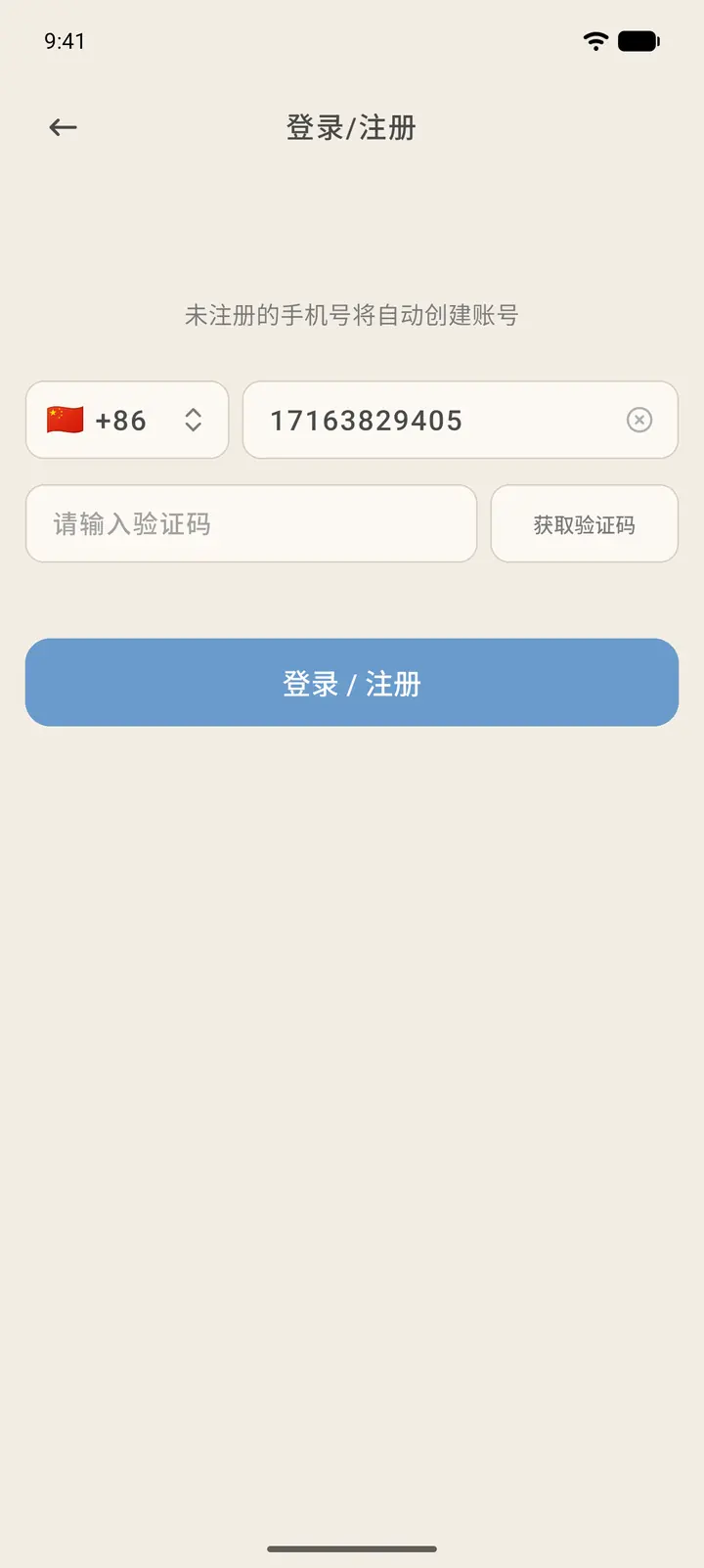
On the login/sign-up page, choose your country or region code, enter your phone number, and tap Get code (「获取验证码」). If the phone number has not been registered before, an account is created automatically.
-
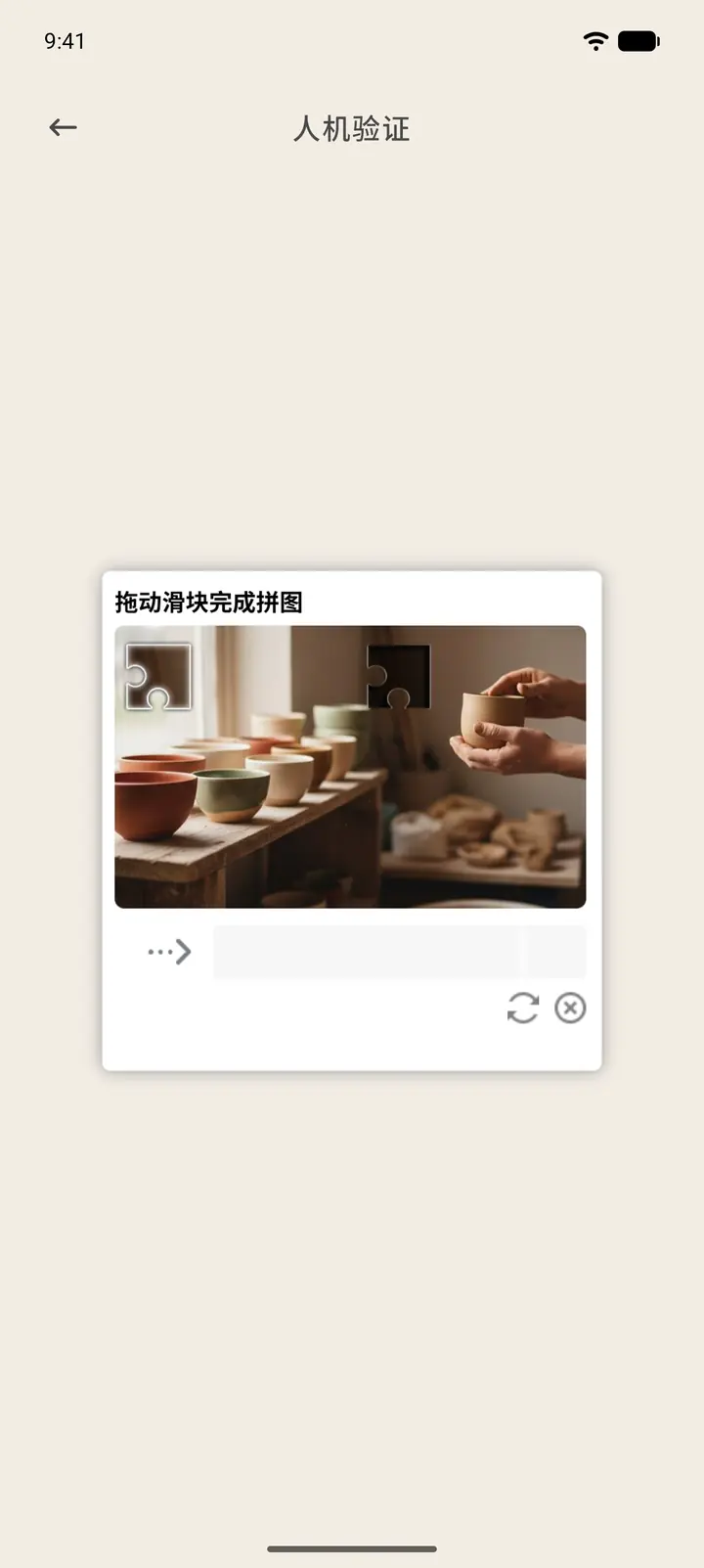
The Captcha Verification (「人机验证」) page appears. Drag the slider to the gap to complete the puzzle. If you can't line it up, tap the refresh icon at the bottom right to get a new picture.
-
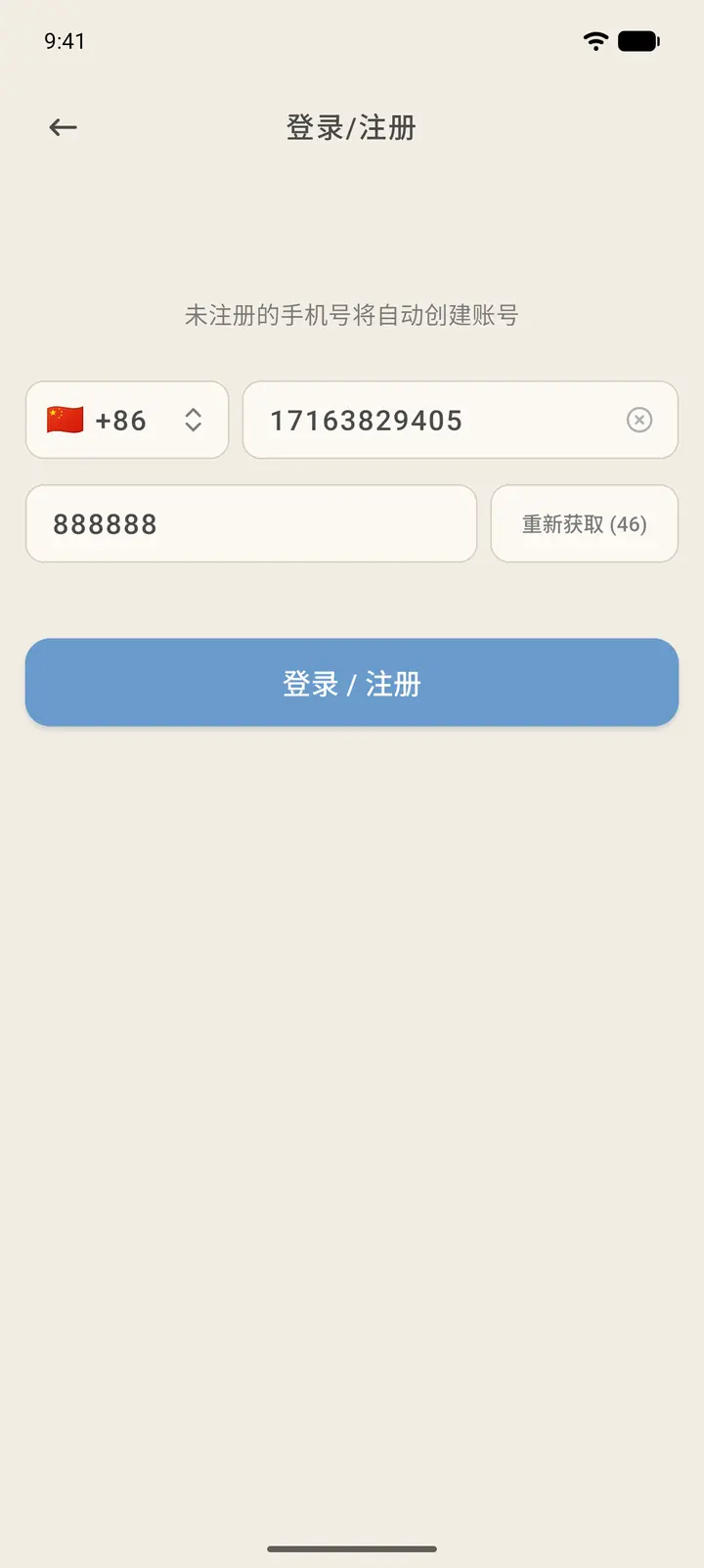
Once you pass verification, a verification code is sent to your phone by text message. The Get code button turns into a countdown, and you can request a new code when it ends. Enter the code in the box and tap Login / Register (「登录 / 注册」).
Result
After you sign up, you go straight into the Getting Started Guide (see the "Getting Started Guide" chapter). You only reach Home once you have filled in your details.
FAQ
What if I don't receive the verification code? First check that the region code and phone number are correct, then wait for the countdown to end and request the code again. If it still doesn't arrive, switch to Link this number or contact customer support.
Can I sign up without agreeing to the terms? No. You must tick the box to agree to the User Agreement and Privacy Policy first.