Write and Send a Letter
To write to a pen pal, start from your conversation page with them.
Where to Find It
Bottom Mailbox (「信箱」) → tap a pen pal → Write (「写信」) at the bottom.
Steps
-
The conversation page shows the letters you've exchanged, in time order. Tap Write at the bottom to open the editor.
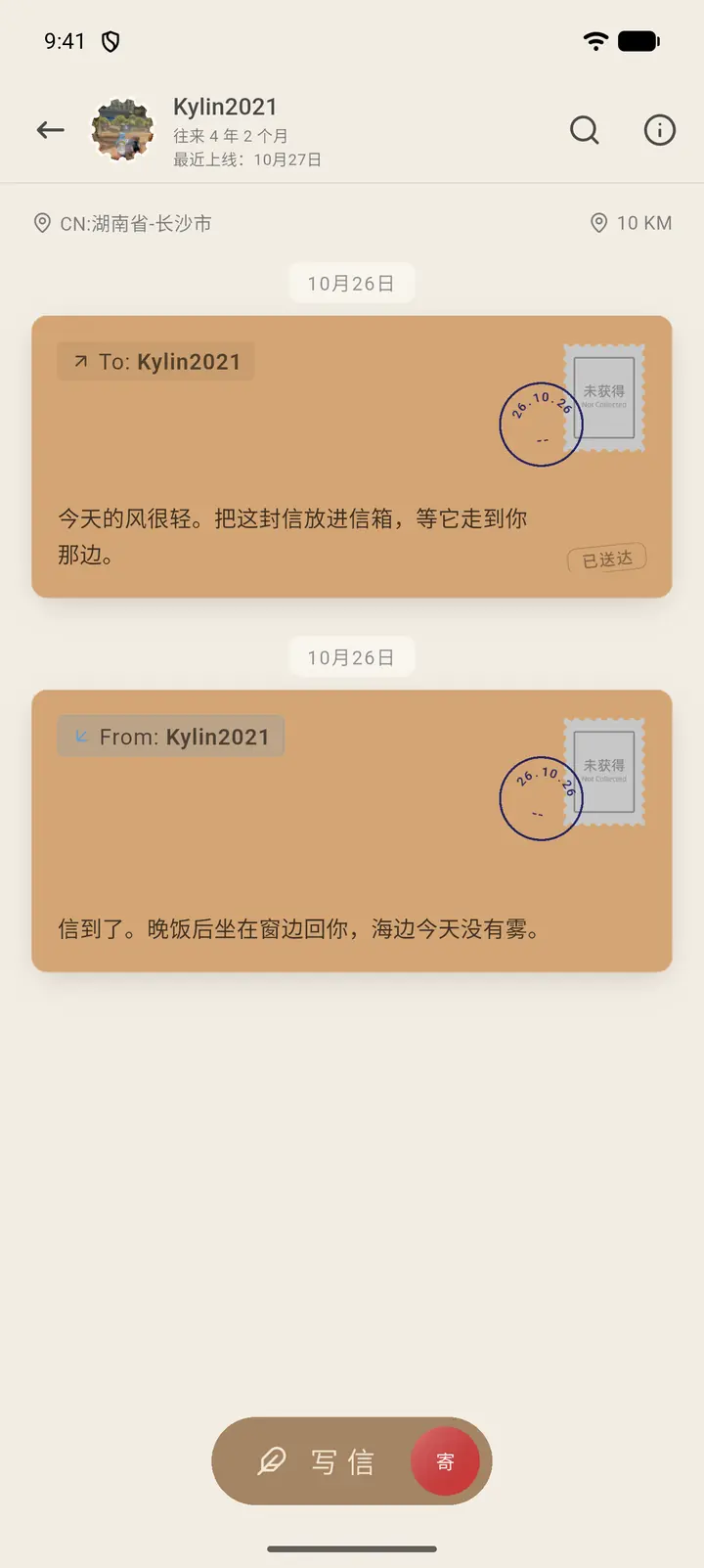
-
The recipient is shown at the top of the editor. At the top right is the stamp; tap it to choose a stamp for this letter. You get a free stamp allowance every day, and other stamps can be bought with coins.
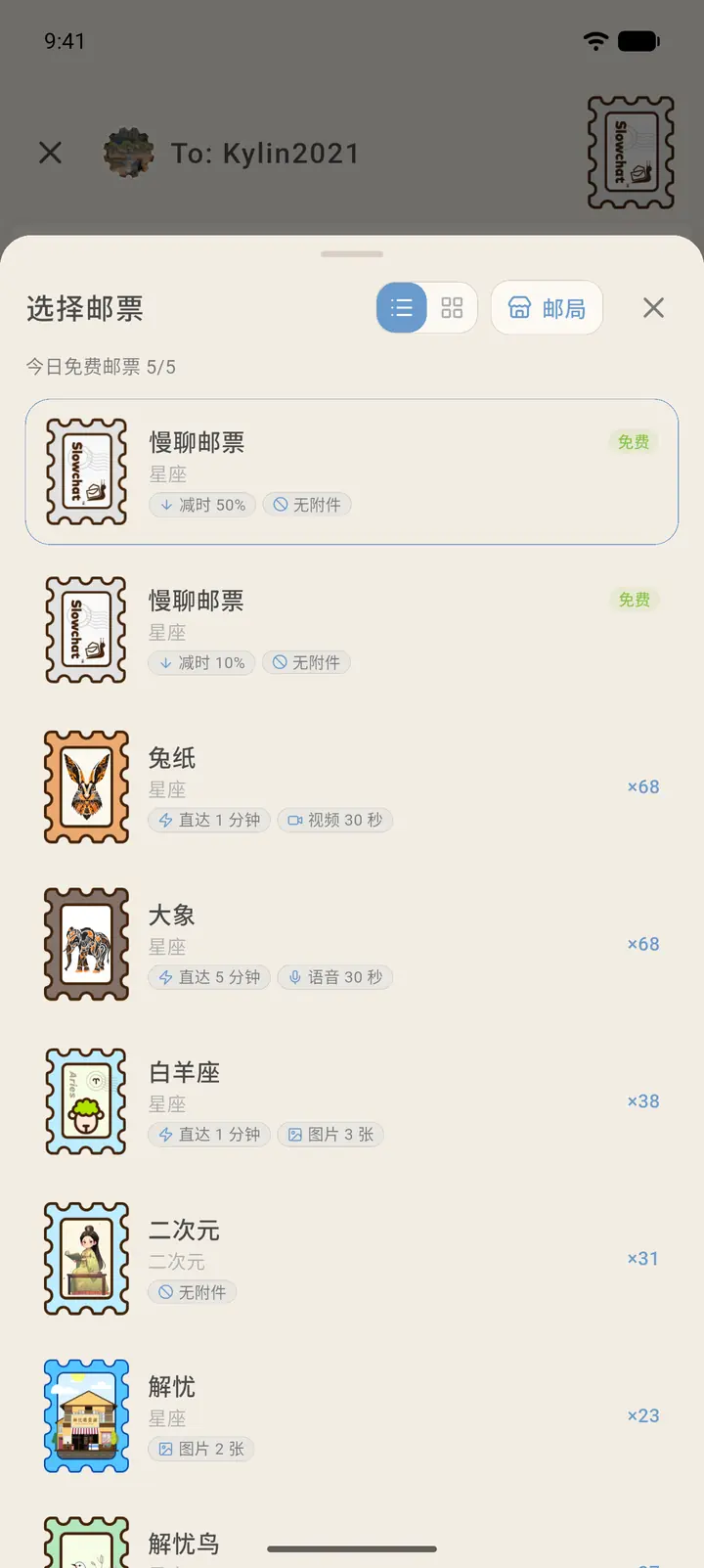
-
Tap the writing area and start typing. Your letter is saved automatically as a draft, so it's still there next time.
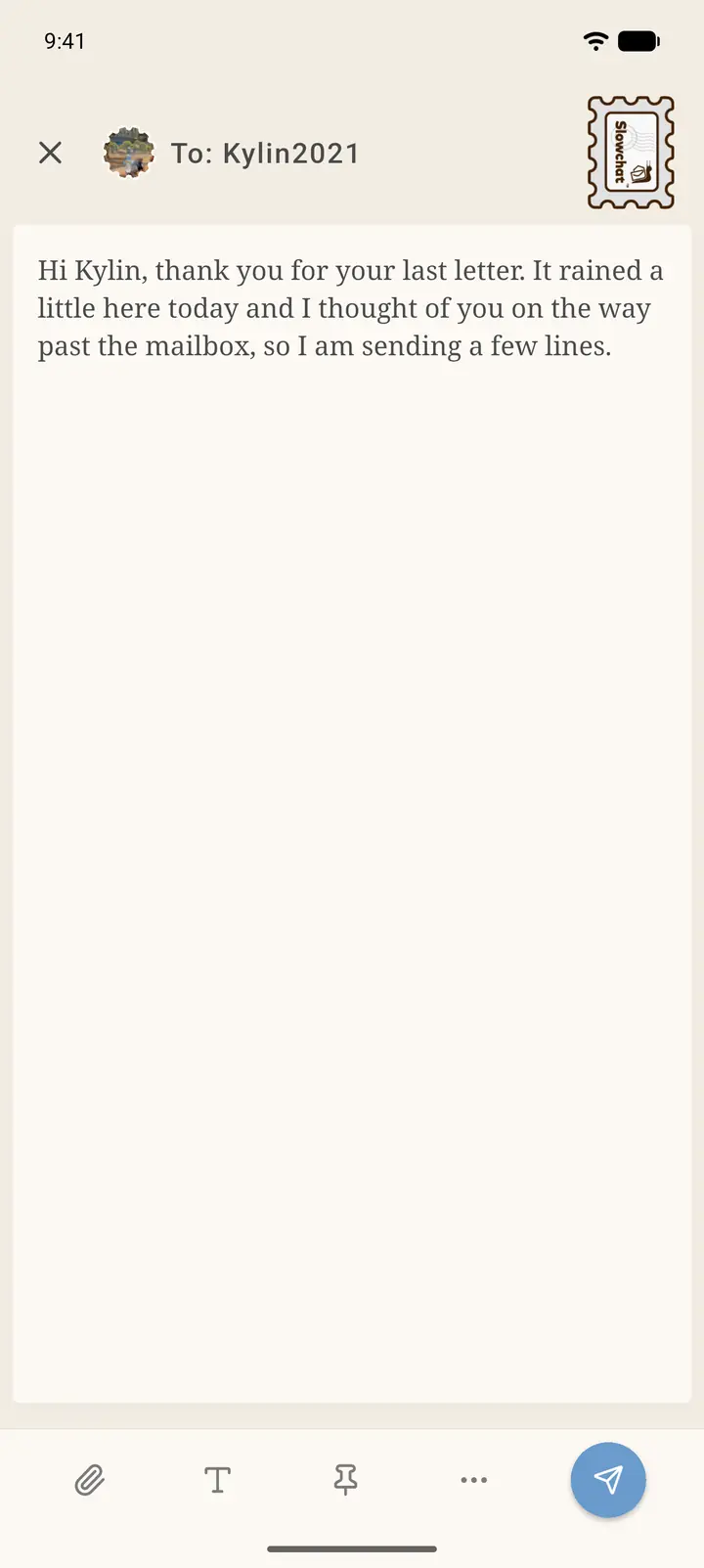
-
The toolbar at the bottom, from left to right: add attachment, font and layout, pin a letter, and more. Tap "T" to open font, bold, italic, underline, and other options.
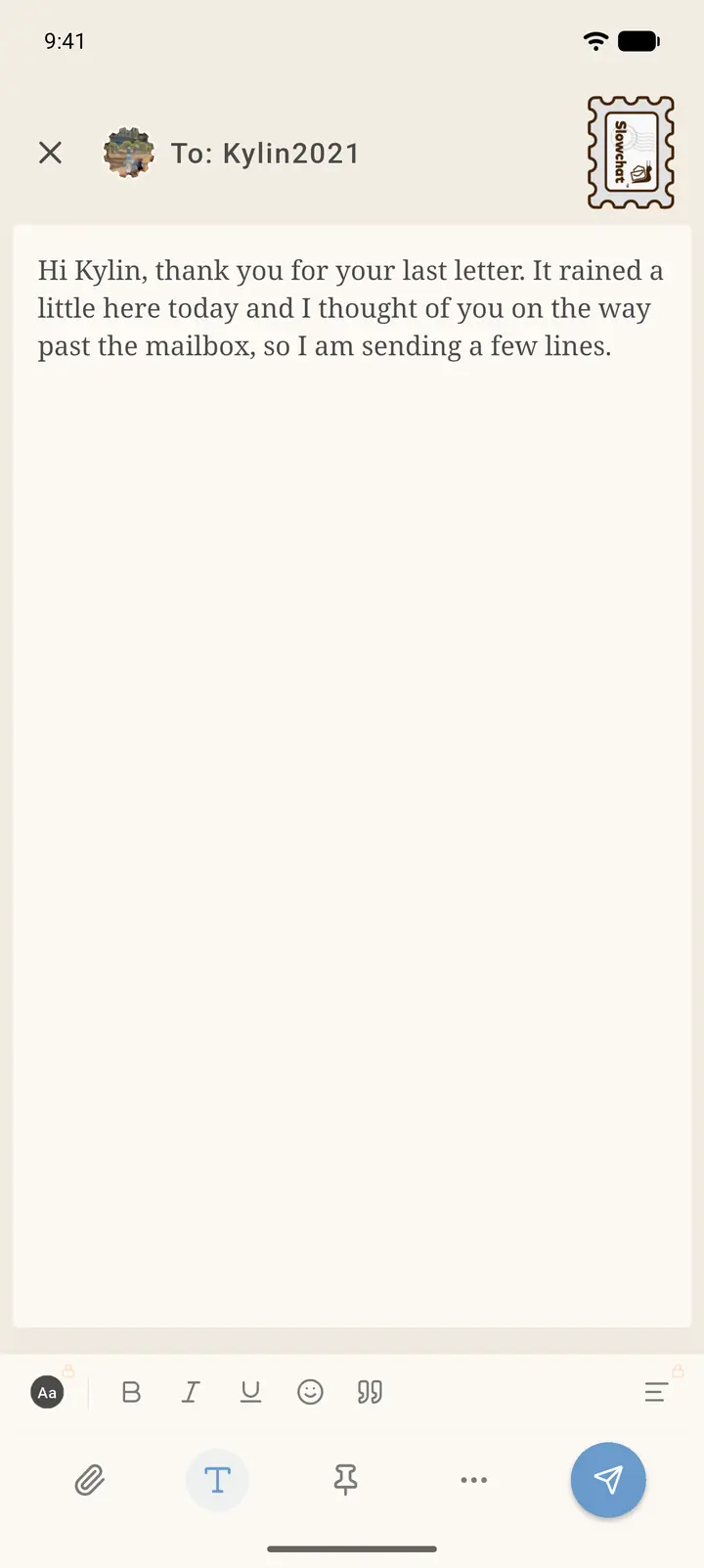
-
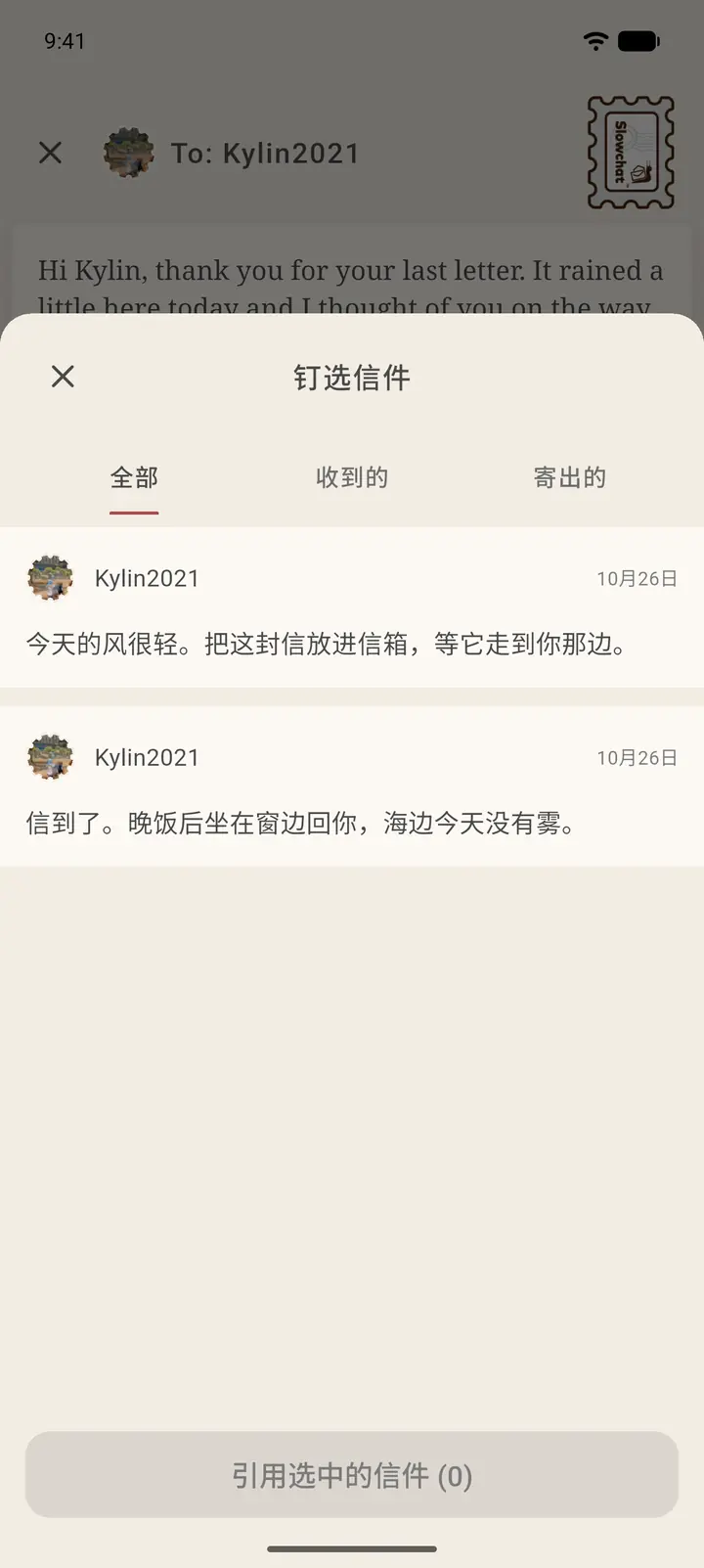
Pin a Letter (「钉选信件」) lets you pin an earlier letter above the editor so you can read it while you reply.
-
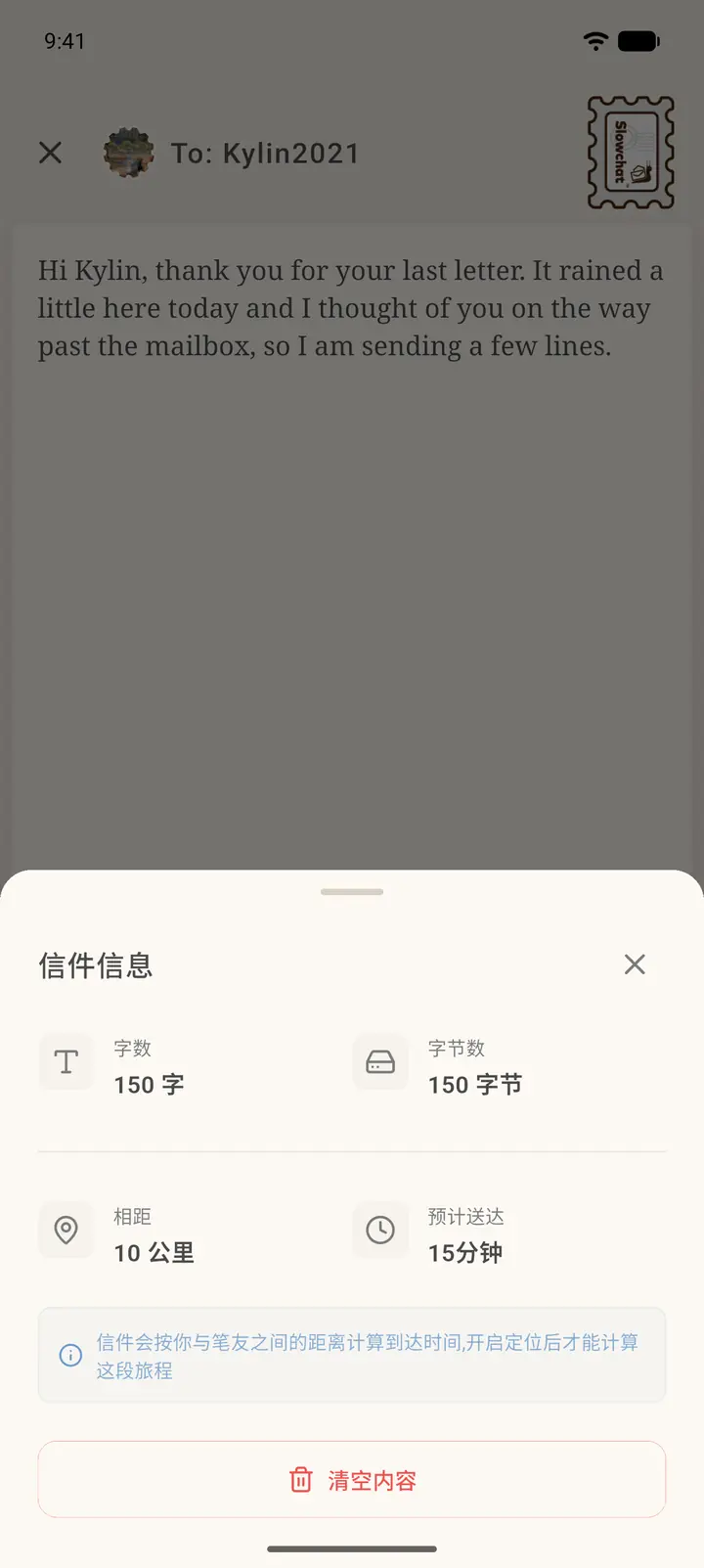
The "···" at the far right of the toolbar opens Letter info (「信件信息」), which shows the character count, byte count, the distance between you and your pen pal, and the estimated arrival time. Clear content (「清空内容」) at the bottom wipes the whole letter. If location is turned off, you'll only see the character count, and the journey time can't be worked out.
-
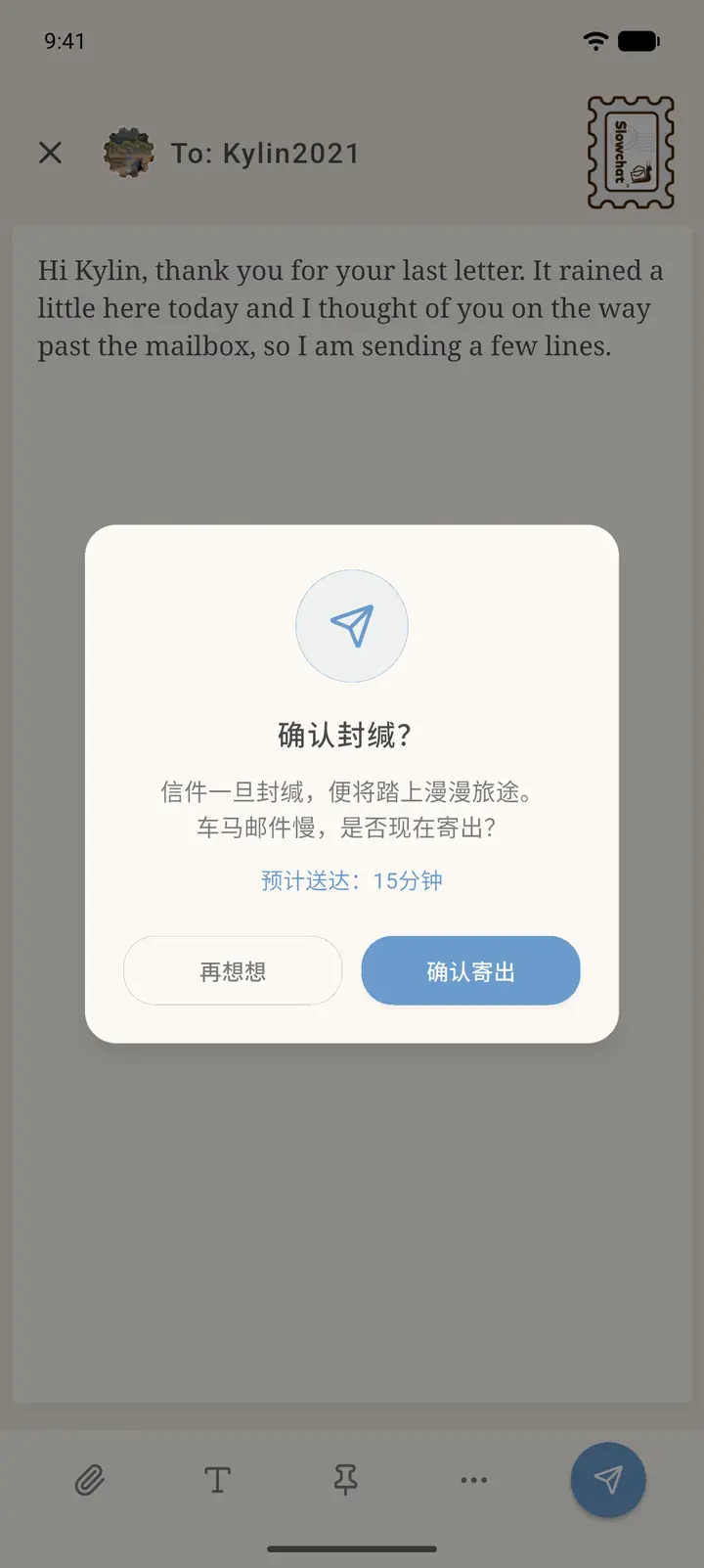
When you're done, tap the send button at the bottom right. A Seal the letter? (「确认封缄」) box appears and tells you the estimated arrival time. Tap Send now (「确认寄出」) and the letter really sets off; tap Not yet (「再想想」) to go back to the editor.
Result
After you send it, the letter spends some time in transit — the farther away, the longer it takes. Until it arrives, your pen pal can't see what's in it.
FAQ
Why do paid fonts and stationery say membership is required? Some styles are only available to members. If you've picked a member style but no longer want it, choose Restore default (「恢复默认」) to remove the styling.