Appearance
In Interface Settings you can change the skin, switch between light and dark mode, and adjust the layout.
Where to find it
Profile (「我的」) → gear icon at the top right → Interface Settings (「界面设置」).
Steps
-
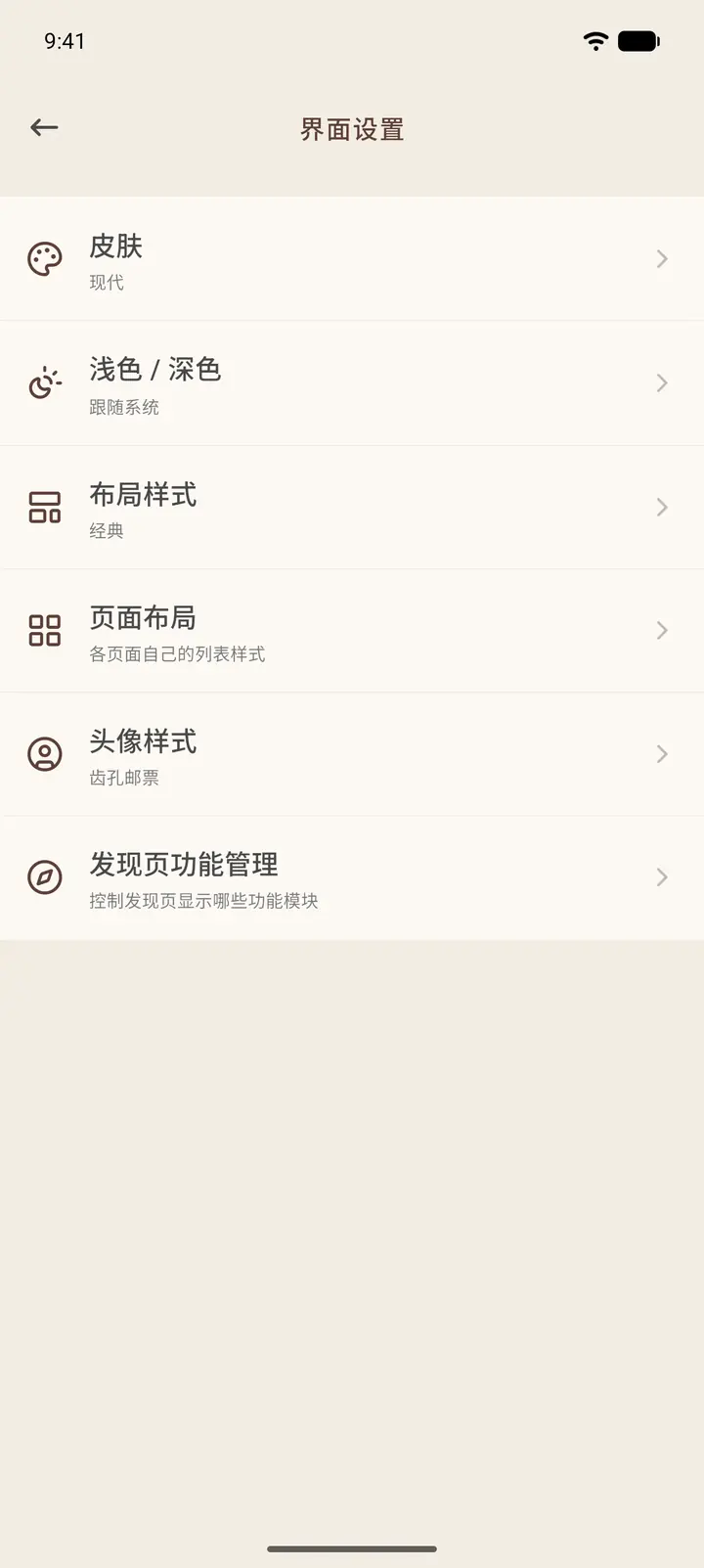
The list has six items: Skin, Light / Dark, Layout Style, Page Layout, Avatar Style and Discover Page Management. The small line of text under each item shows your current choice.
-
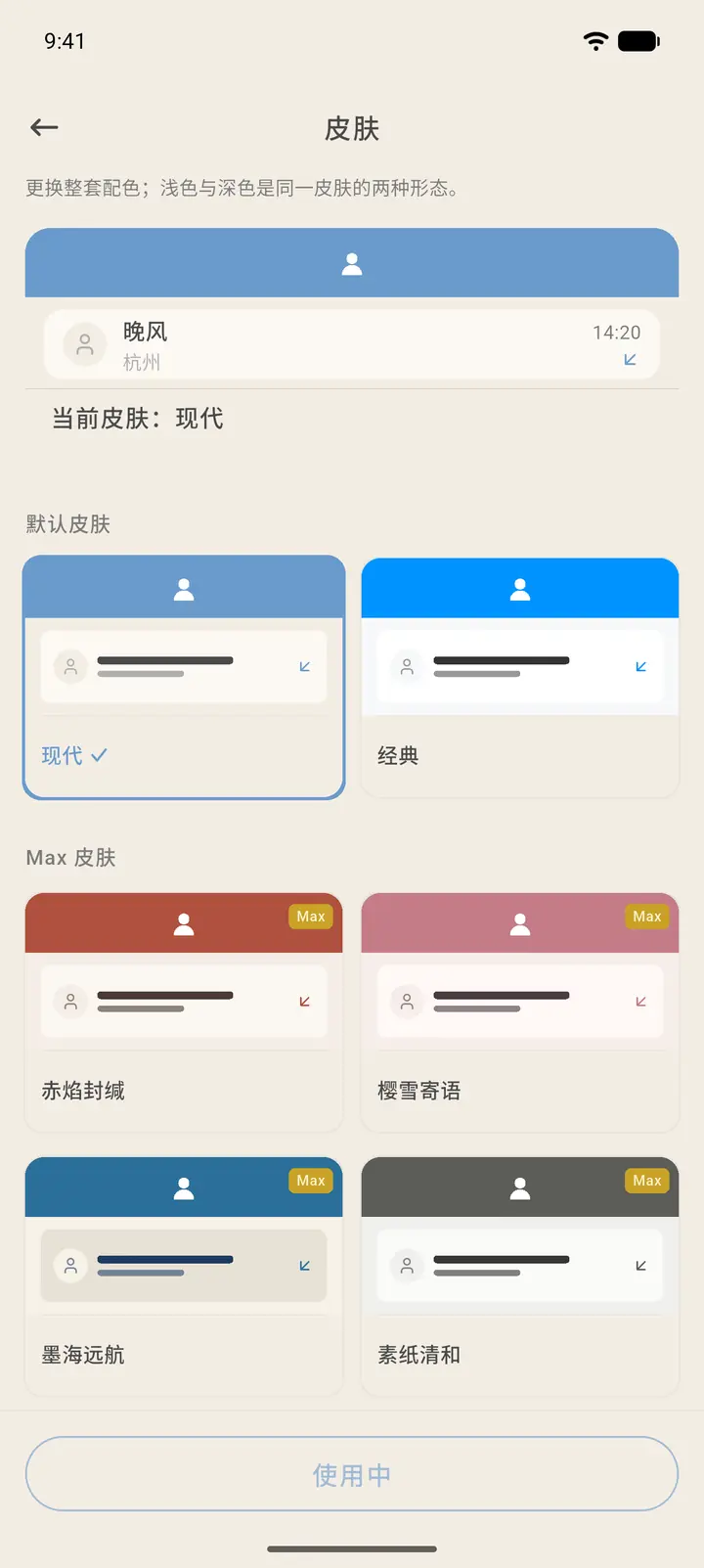
Skin (「皮肤」) changes the whole color scheme. The current skin is shown at the top. Below it are the default skins (Modern and Classic) and the membership skins marked Max. Tap one to select it, then tap Use (「使用」) at the bottom. Light / Dark (「浅色 / 深色」) lets you follow the system or stay on light or dark mode.
-
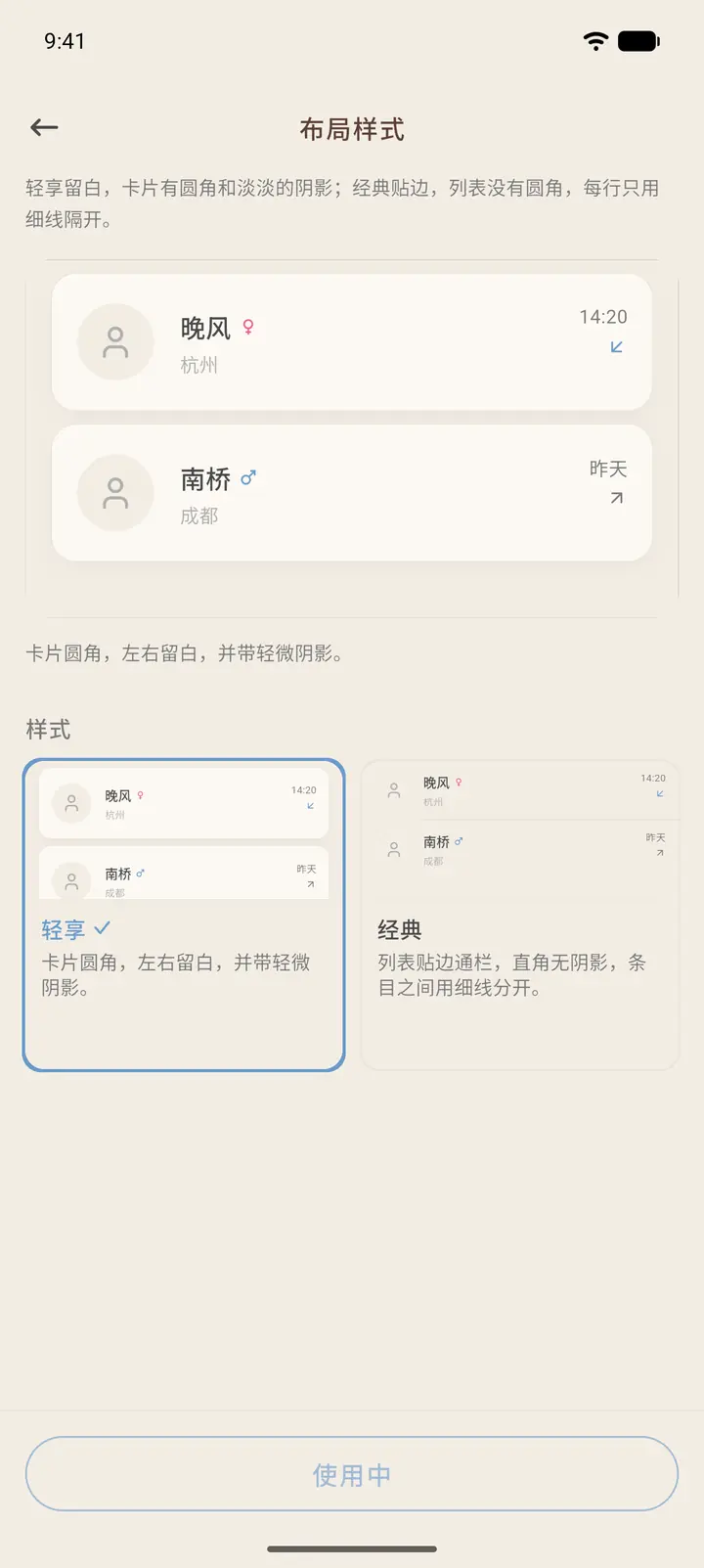
Layout Style (「布局样式」) only changes corners, margins and shadows, not colors. Lite (「轻享」) keeps rounded corners and card shadows; Classic (「经典」) uses full-width, edge-to-edge rows.
-
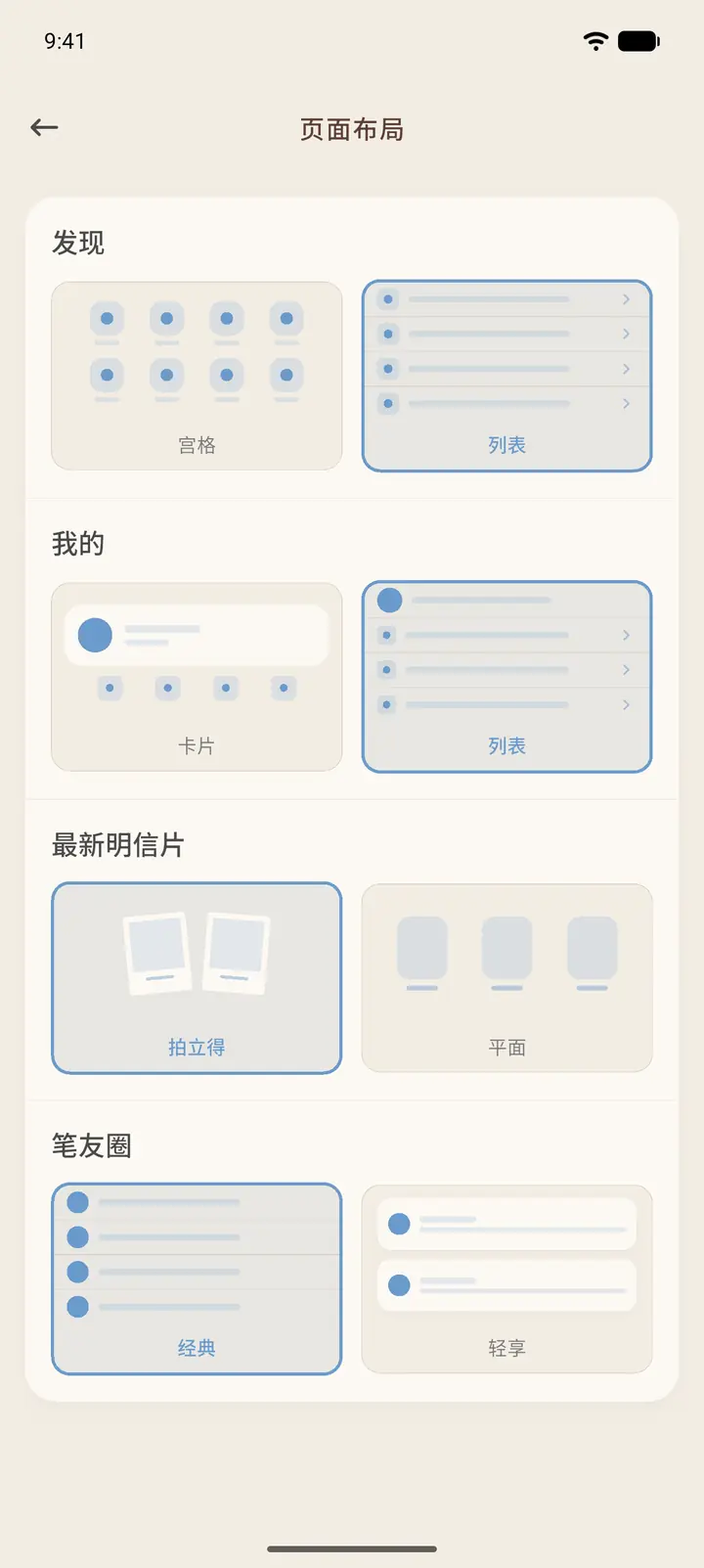
Page Layout (「页面布局」) lets each page use its own arrangement: choose Grid or List for Discover, and Cards or List for Profile (both default to List). Latest postcards can be Polaroid or Flat, and Echoes can be Classic or Lite.
-
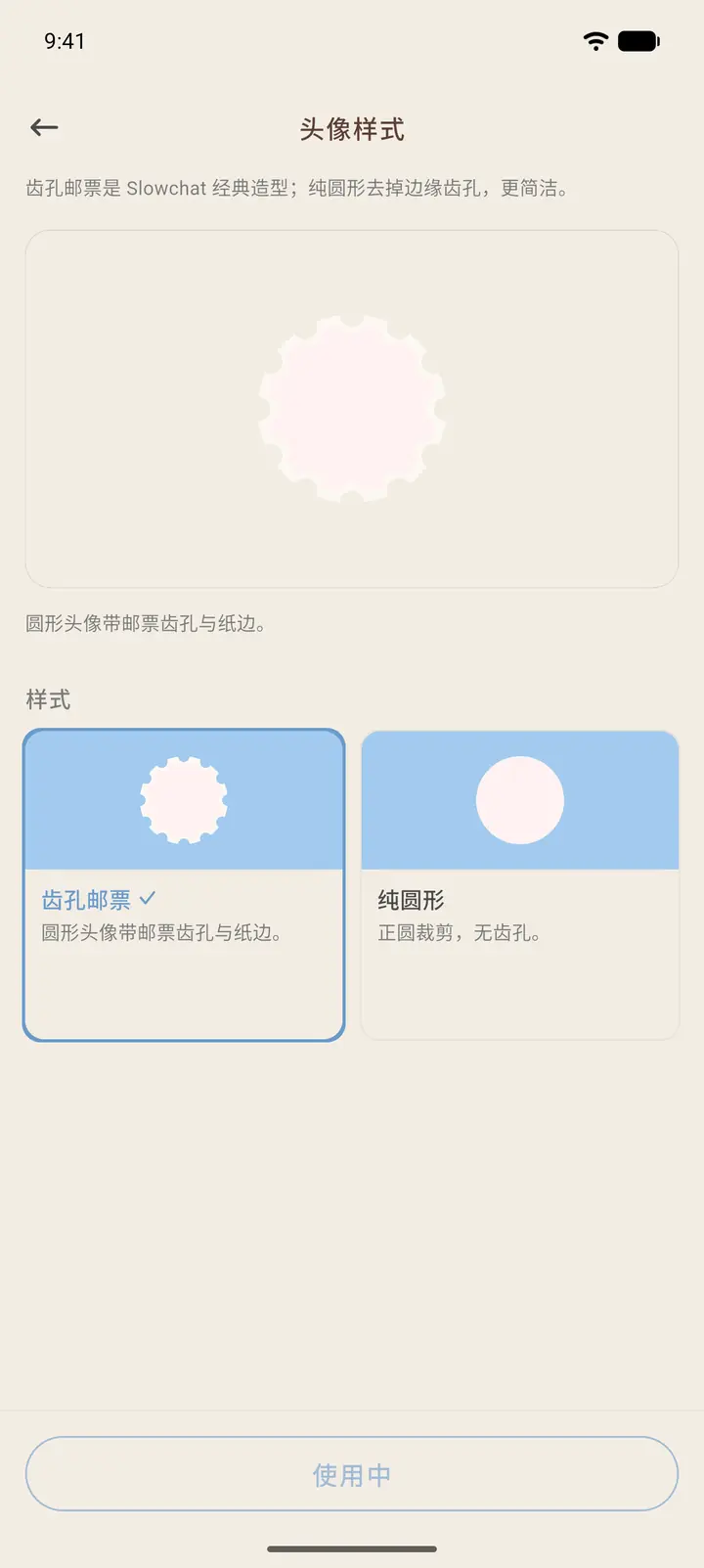
Avatar Style (「头像样式」) switches between perforated stamp avatars and round avatars. Discover Page Management (「发现页功能管理」) controls which shortcuts appear on the Discover page.
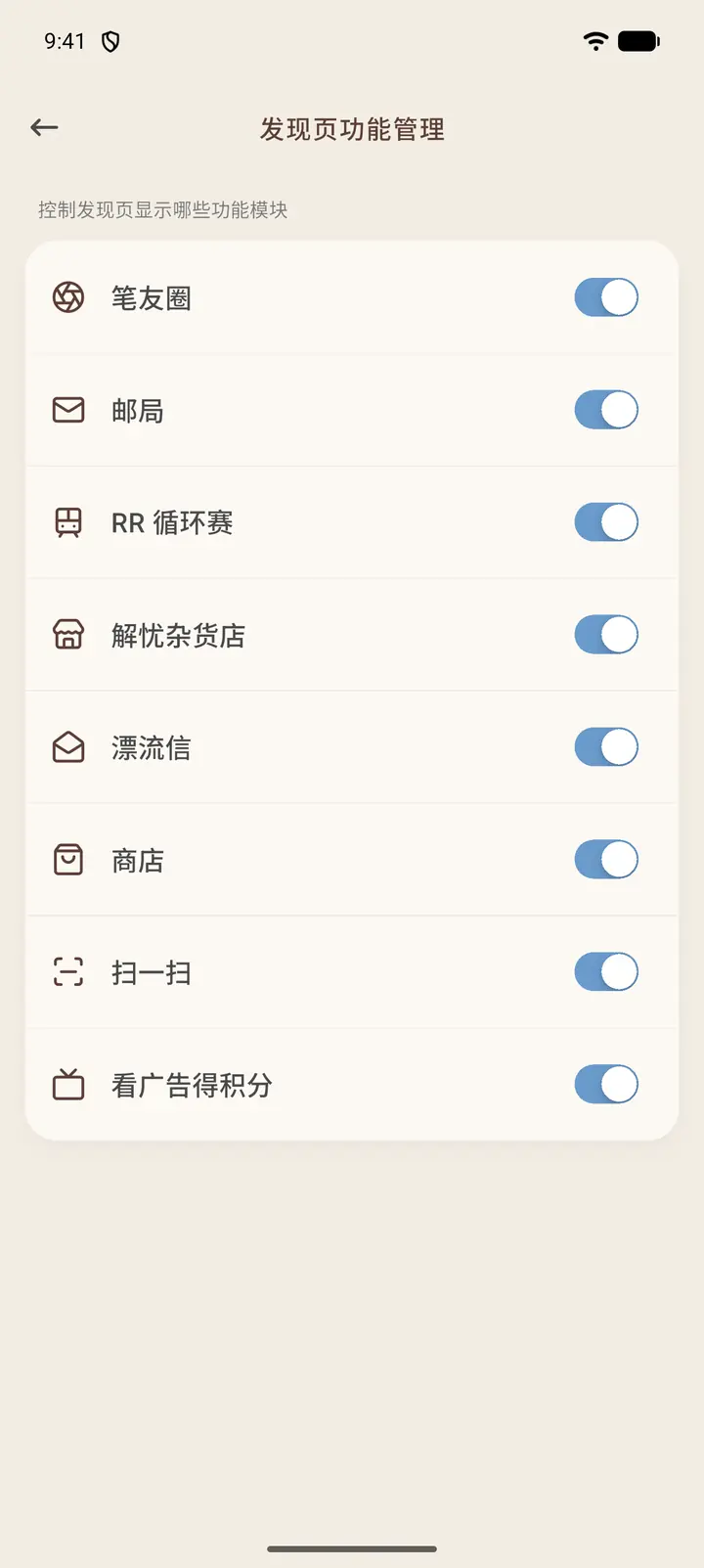
Discover Management (「发现页功能管理」) is a list of switches that decide which entries appear on the Discover tab: Echoes, Post Office, RR Circuit, Wonder Store, Drift Letter, Shop, Scan, and Watch ads for points. Turning one off only hides the entry; your existing content isn't affected.
Result
Your choice takes effect immediately, with no restart needed. When your membership expires, paid skins switch back to Modern automatically, and come back when you renew.
FAQ
The colors look wrong after I changed skin? Check Light / Dark first. Every skin has a matching dark color scheme for dark mode.