Postcards
Postcards are Slowchat's "round-the-world" exchange: the cards you send travel between different people, collecting mileage and postmarks along the way.
Where to find it
The PC (「PC」) tab at the bottom.
Steps
-
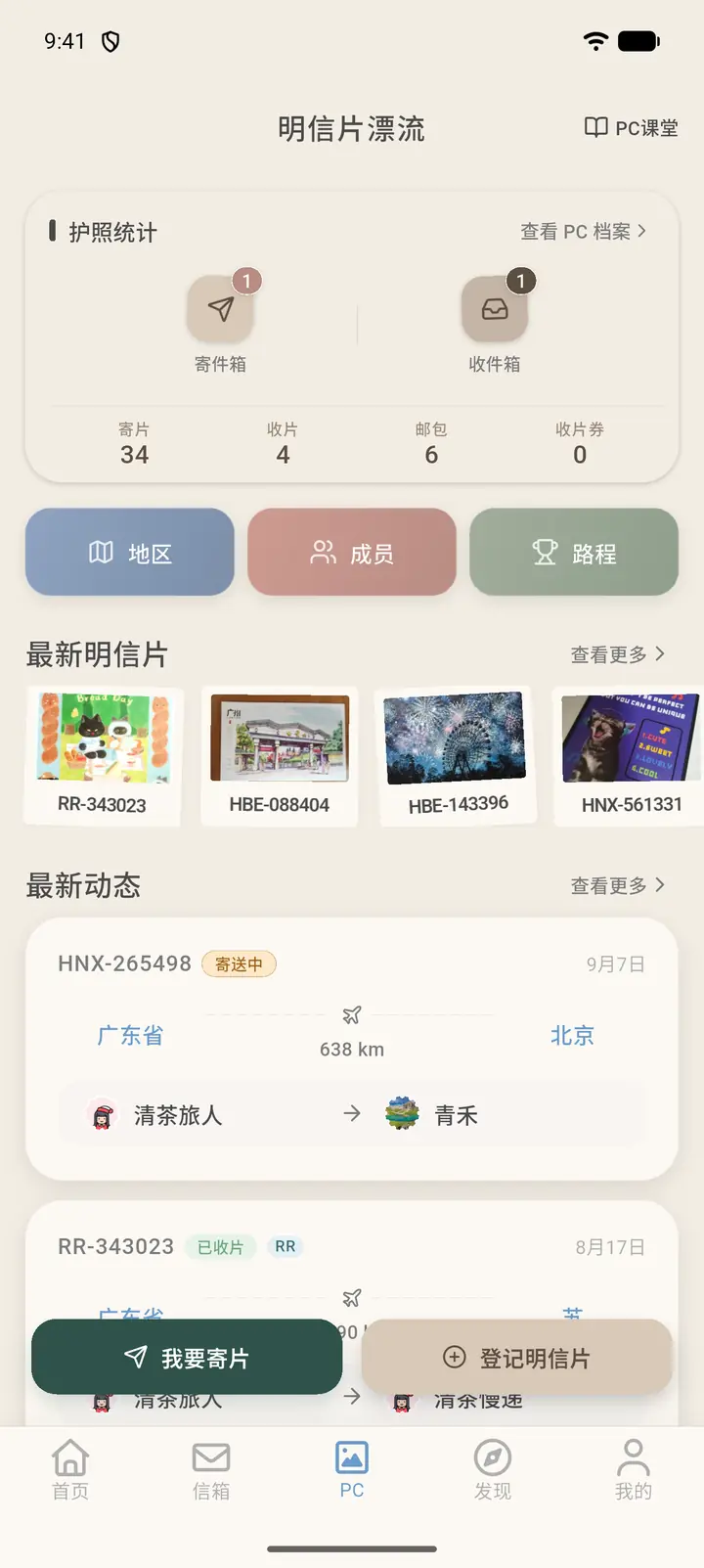
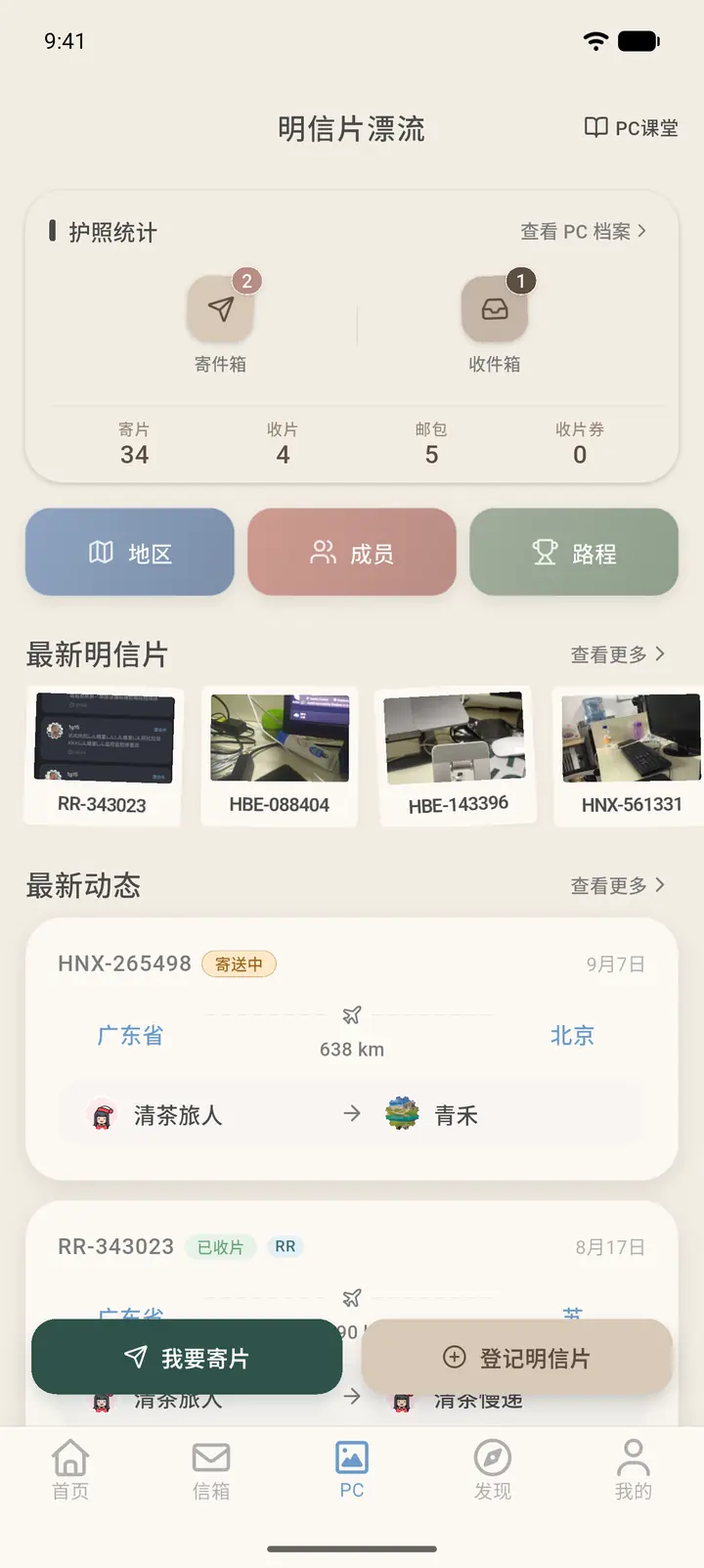
The top of the Home page shows your Passport Stats (「护照统计」): the number of cards you've sent and received, your mailbags and postcard vouchers, plus shortcuts to your Outbox (「寄件箱」) and Inbox (「收件箱」). Below that are three leaderboard entries — Region (「地区」), Members (「成员」) and Distance (「路程」) — followed by Latest Postcards (「最新明信片」) and Latest Updates (「最新动态」).
-
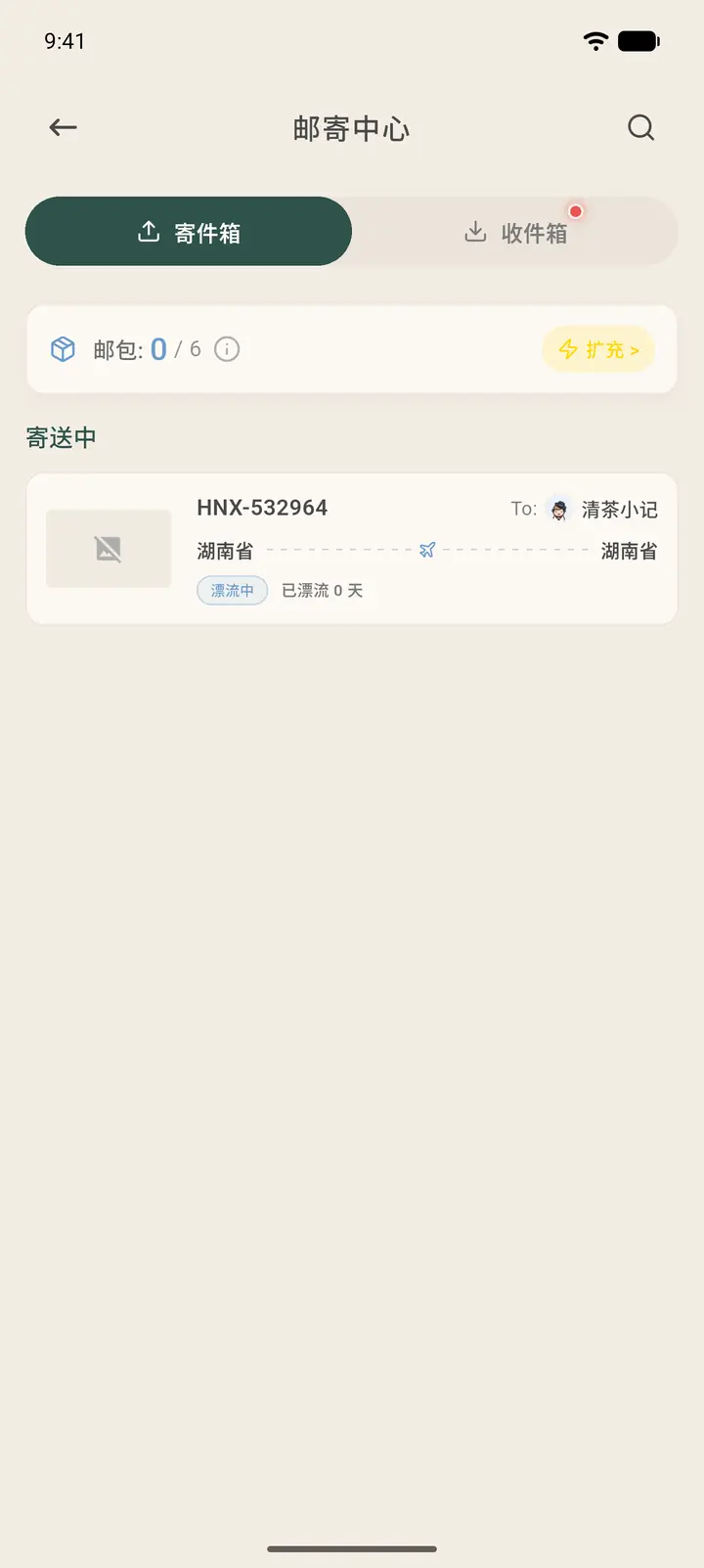
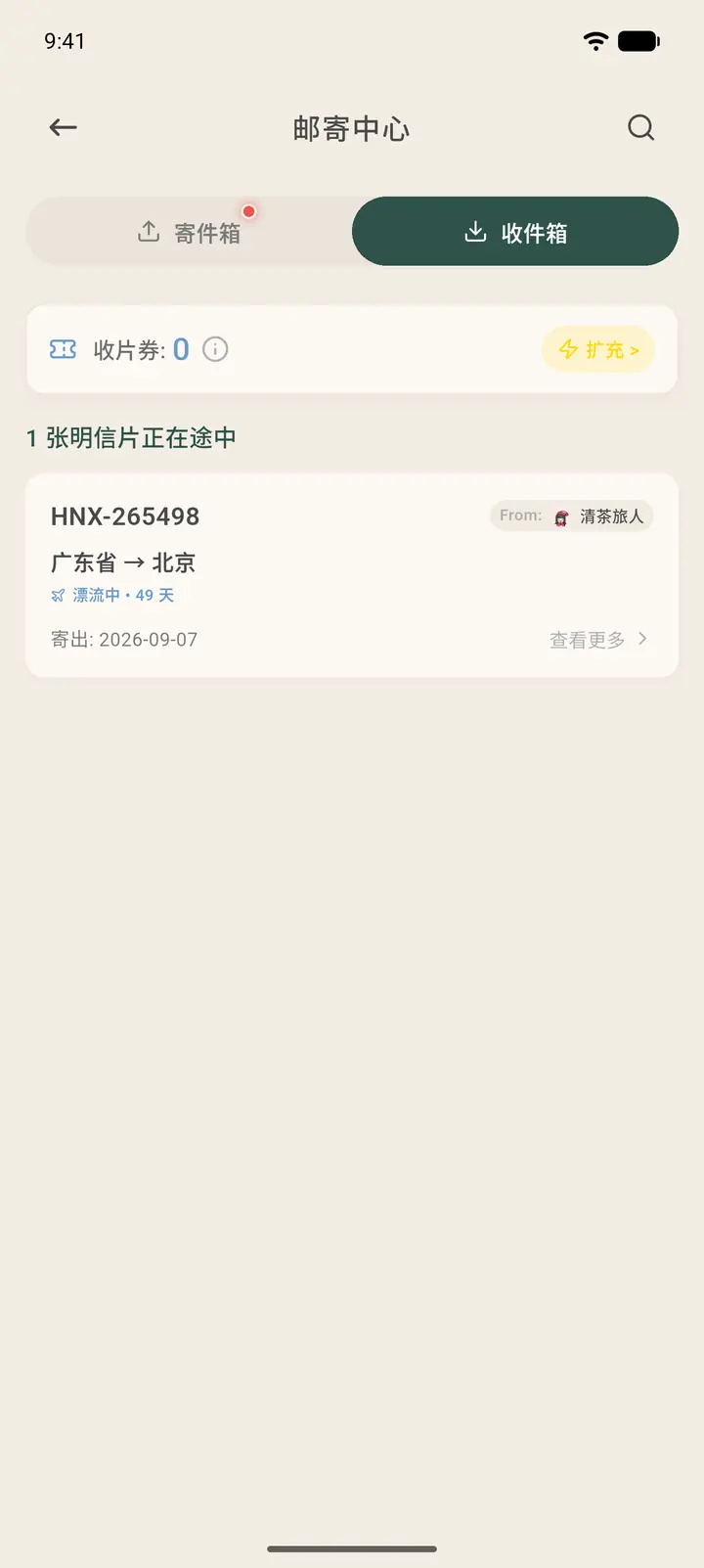
Tap Outbox to see the cards you've sent, and Inbox to see the cards you've received. Each card shows its ID, the start and end locations, the distance and its status (In Transit, Received).
-
Region ranks provinces or cities, Members ranks people by the number of cards sent, and Distance ranks by total mileage.
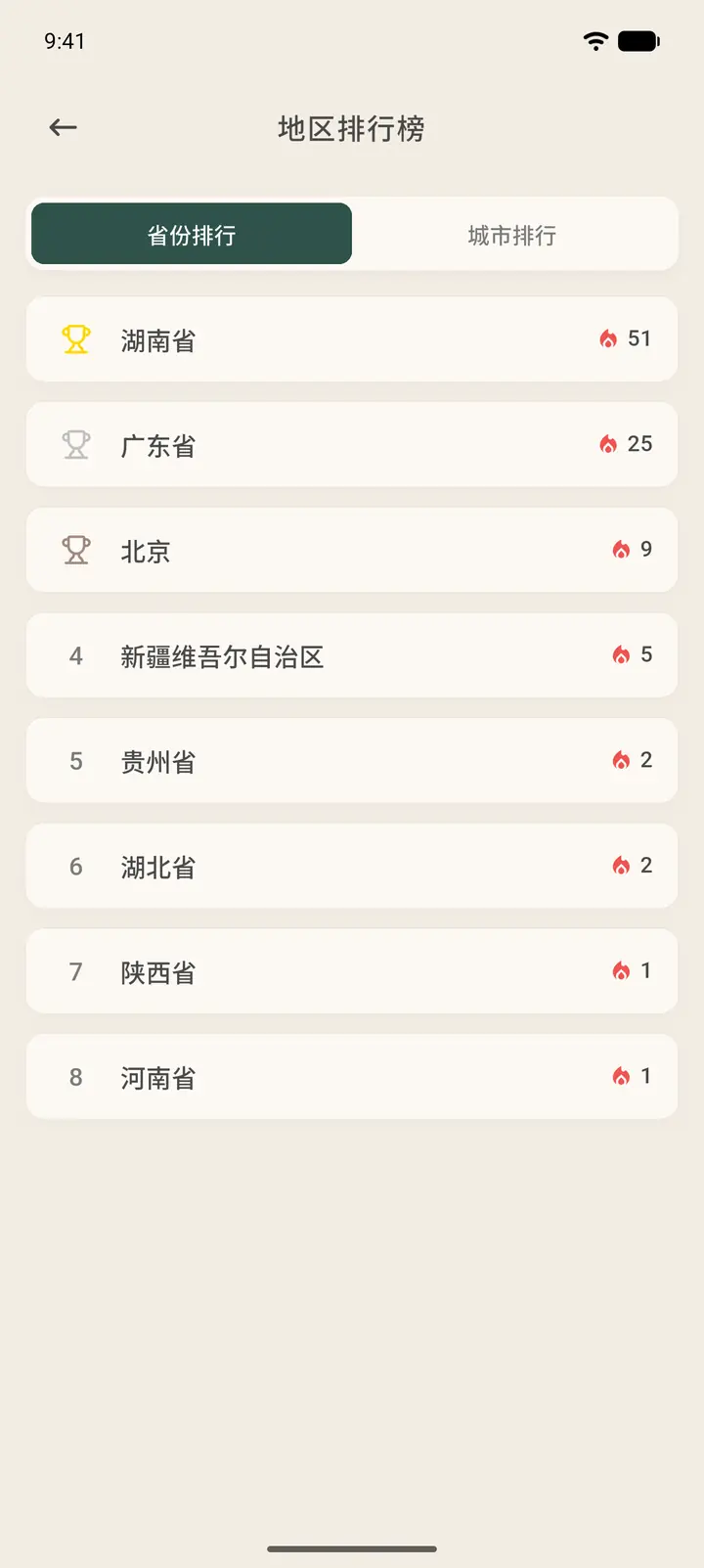
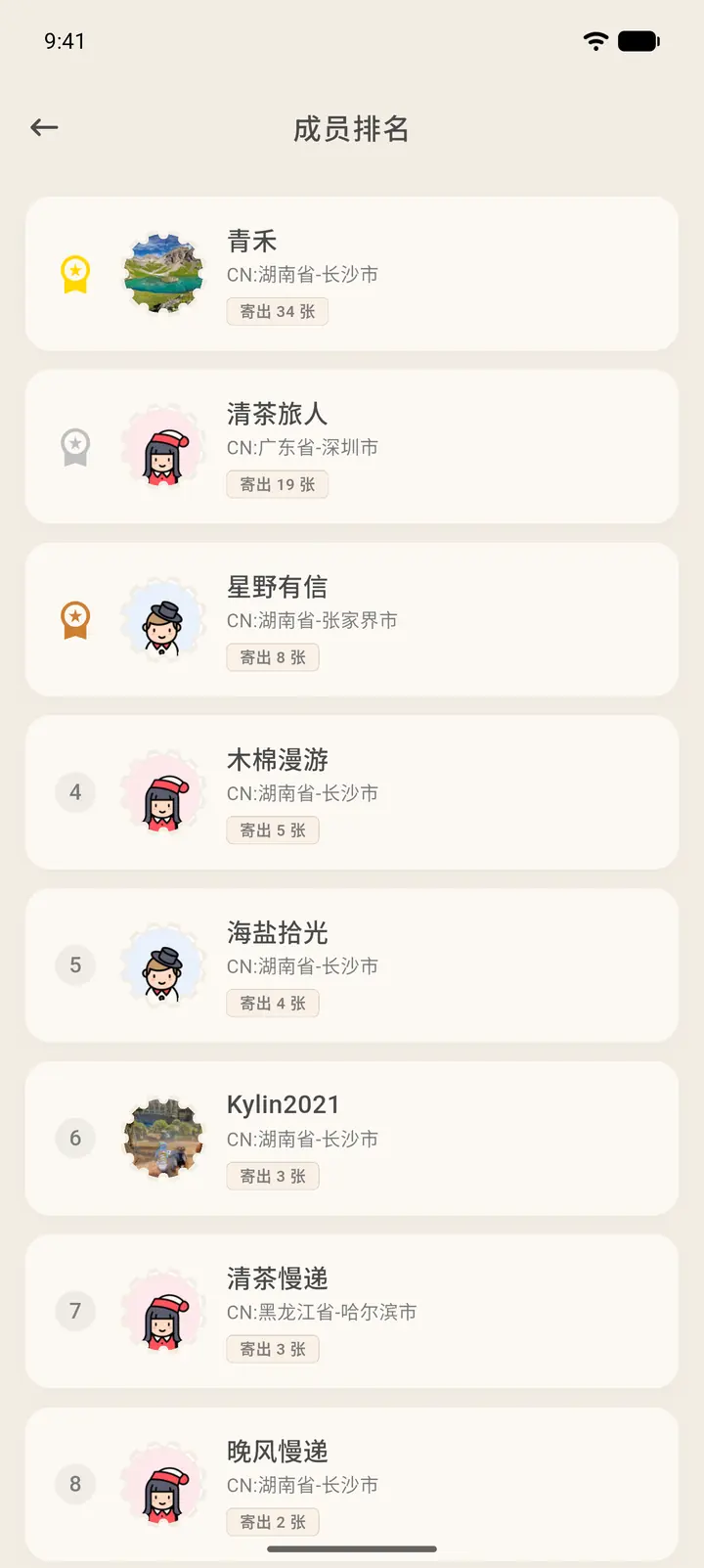
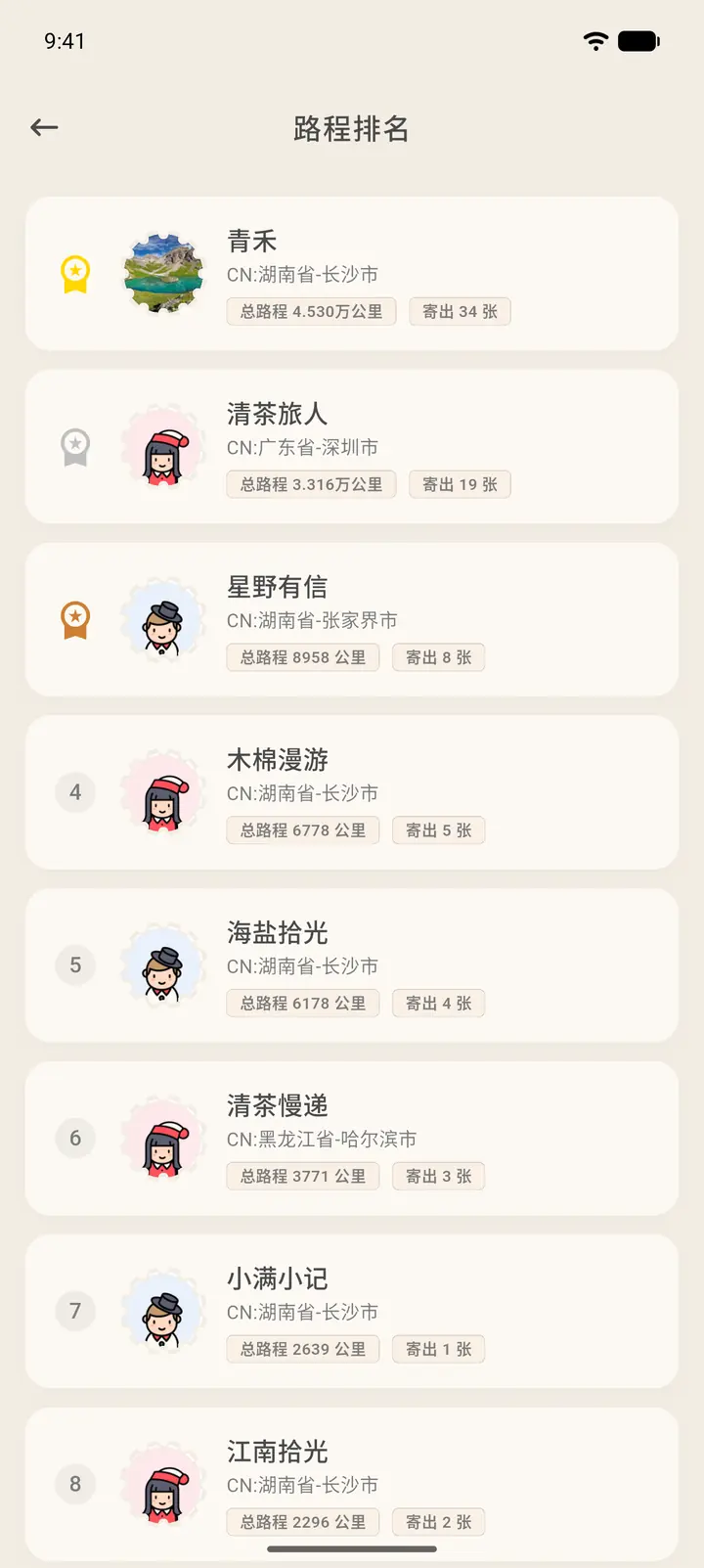
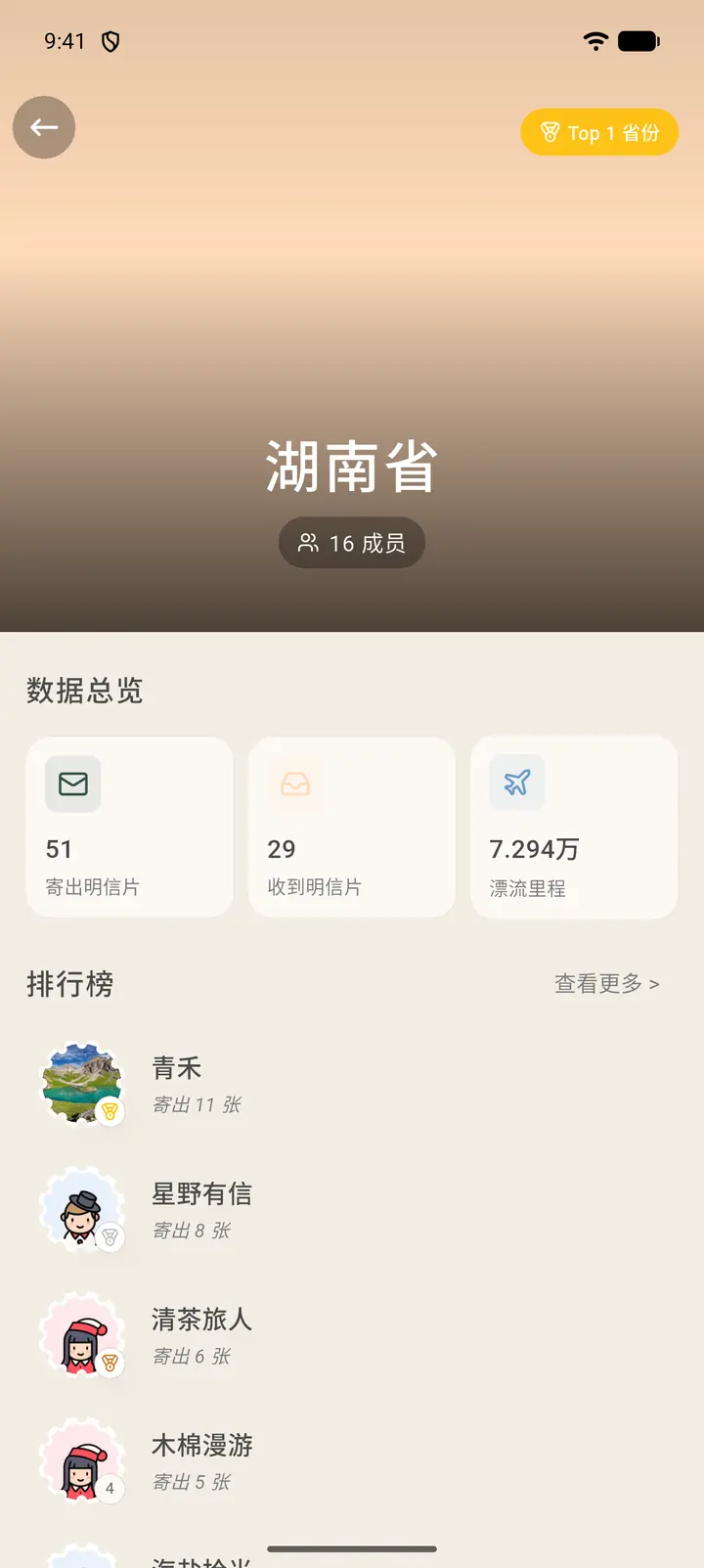
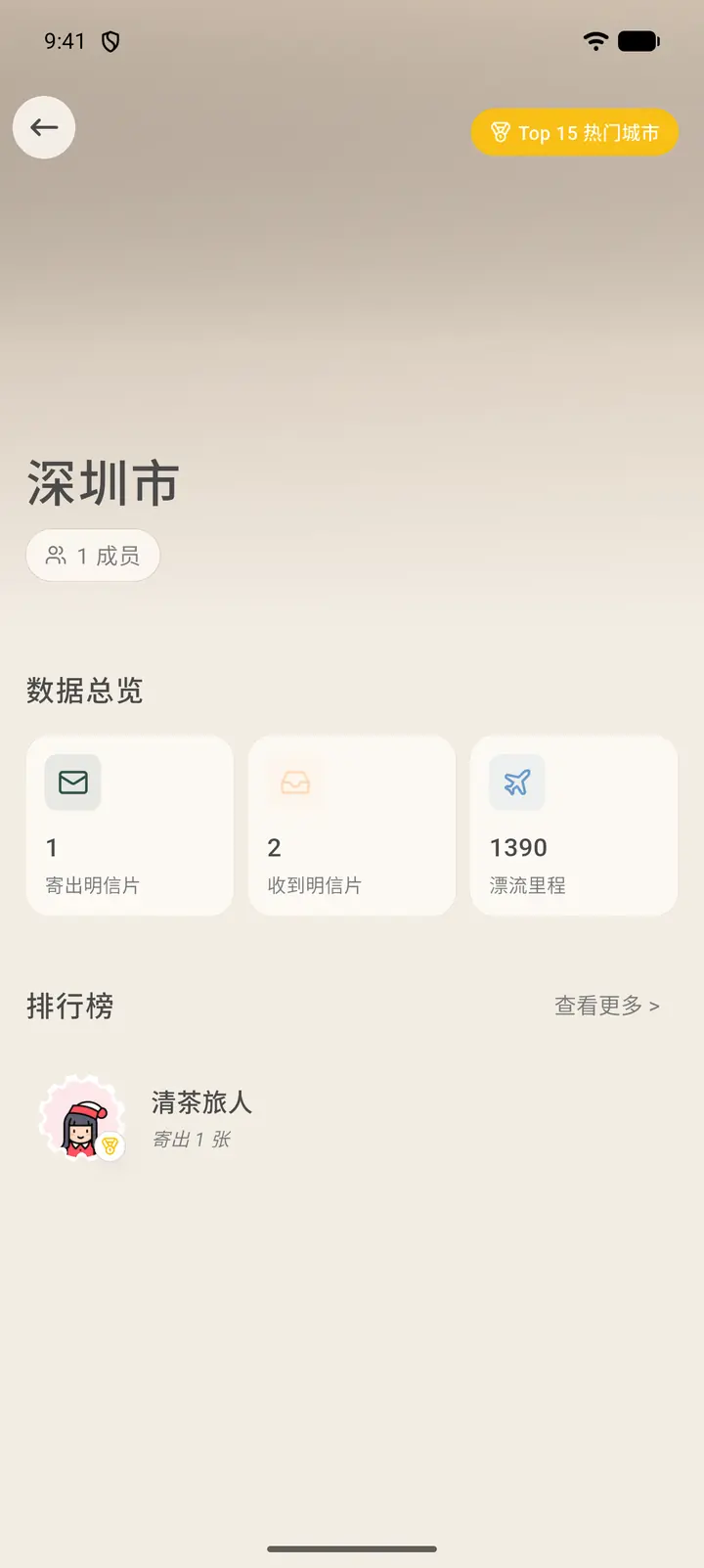
In the Region Leaderboard (「地区排行榜」), tap a province or city to open its page. The top shows the name and number of members, and Overview Statistics (「数据总览」) shows how many postcards the region has sent and received and its drifting mileage. The leaderboard below lists the region's members by cards sent; tap View More (「查看更多」) for the full list.
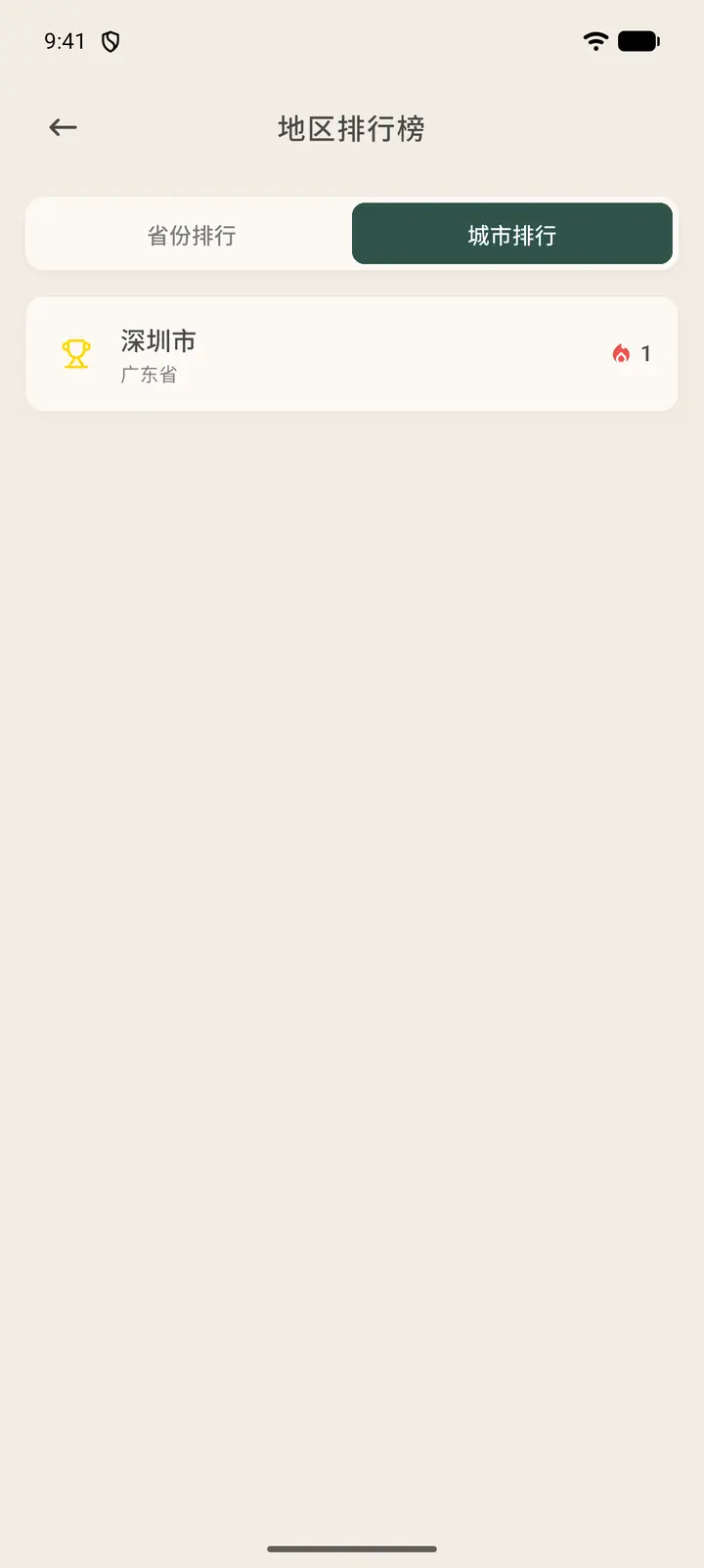
At the top of the Region Leaderboard there are two tabs, Provinces (「省份排行」) and Cities (「城市排行」); switch to Cities to see the ranking by city. Tap a city to open its page: the name, number of members, postcards sent and received, drifting mileage, and a leaderboard of the city's members by cards sent. Tap View More (「查看更多」) for the full list.
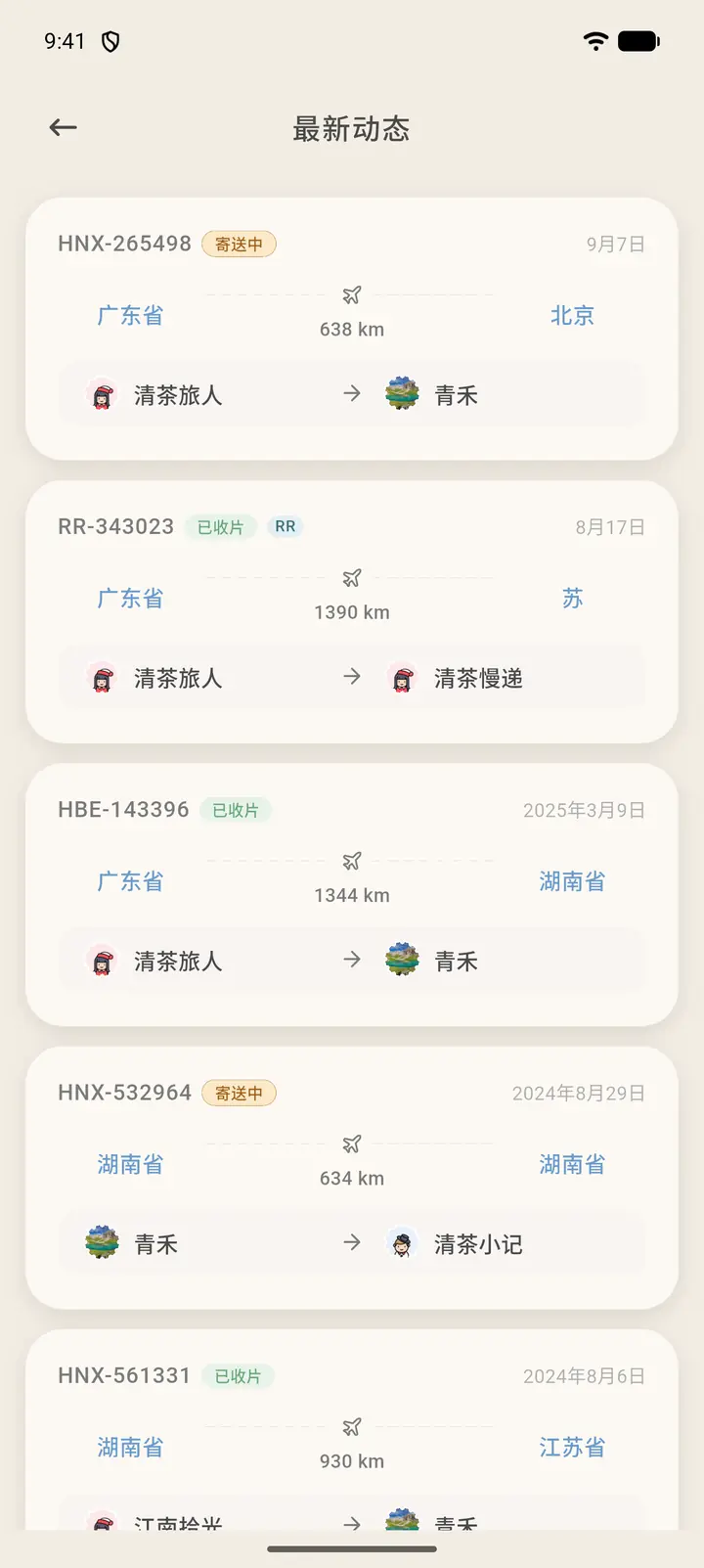
On the Home page, tap View More next to Latest Updates to open the full activity list. Each entry is one card's journey: its ID, status (In Transit, Received), start and end locations, distance, and the sender and recipient. Tap a card to open its details, where you can flip between the front and back, see when it was sent and registered, read the travel comments, see who liked it, leave a comment, share the route or report it.
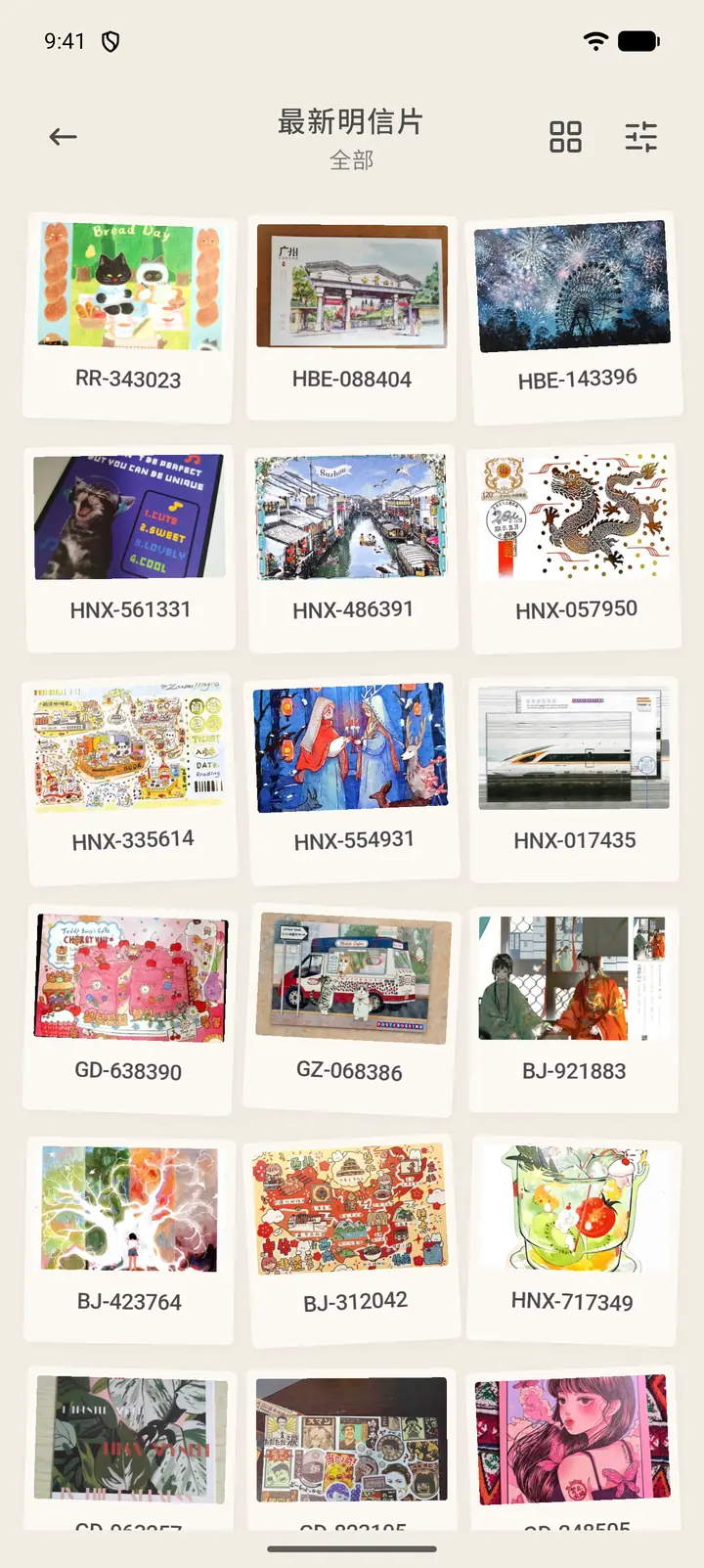
Tap View More next to Latest Postcards to open the postcard wall. Each card is shown as a numbered photo print; tap one to open its details. In the top right you can switch the layout and filter the cards.
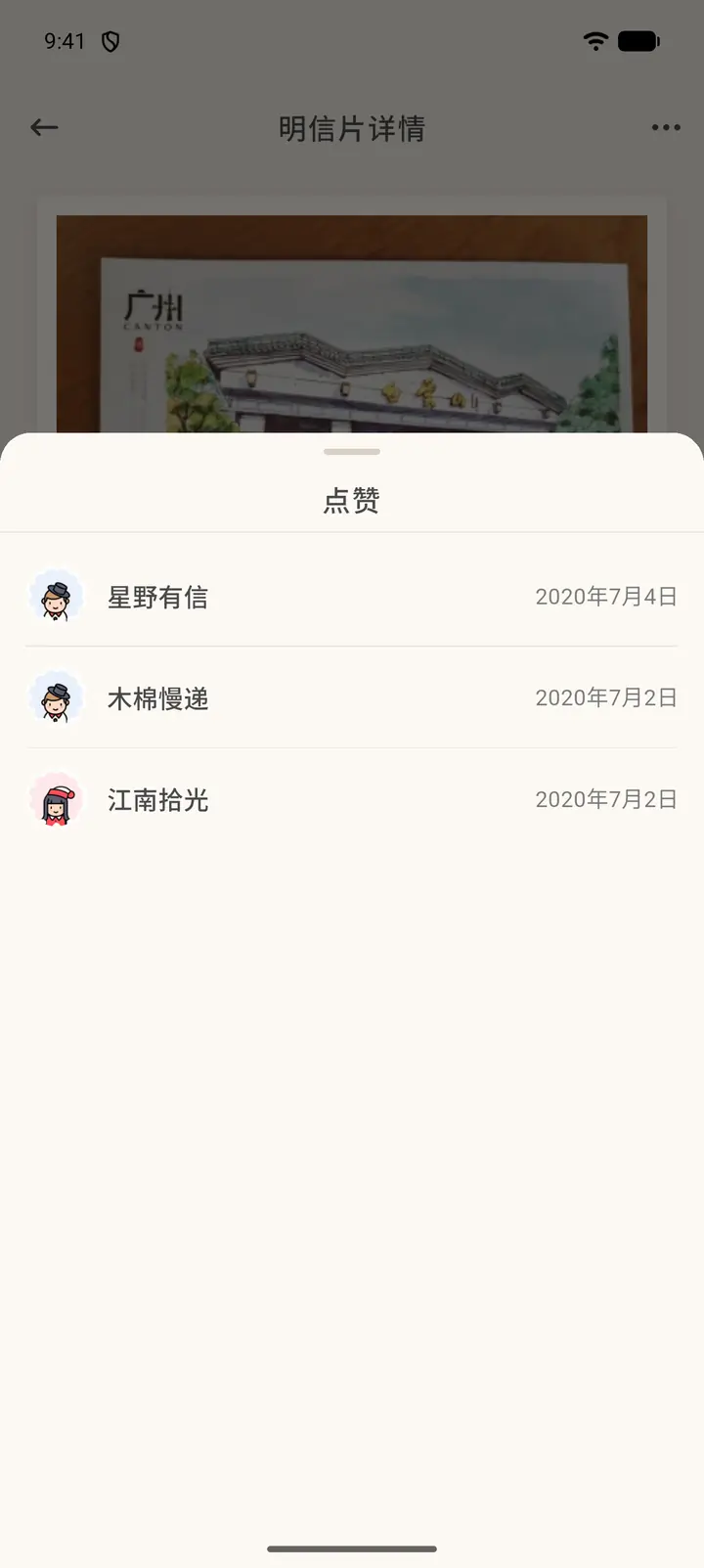
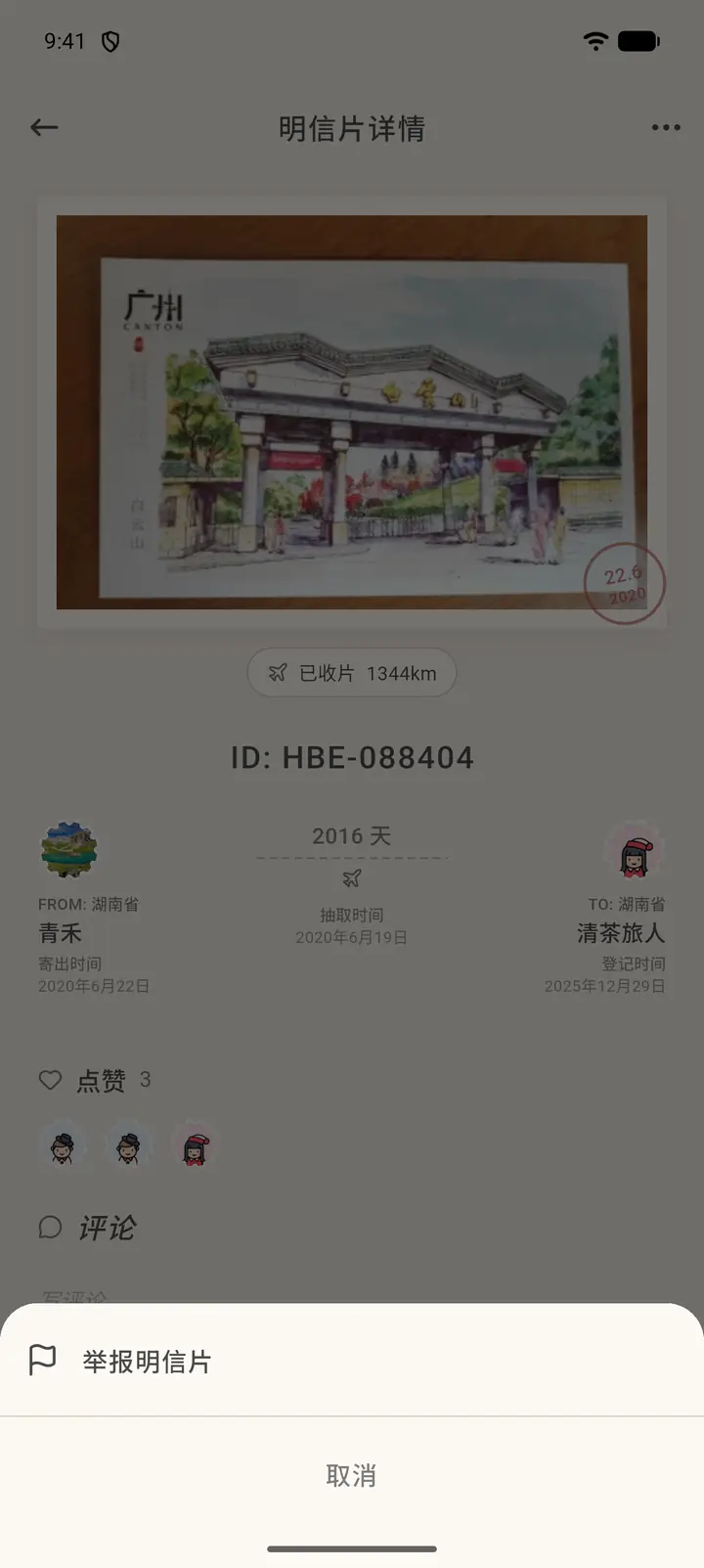
Tap a card in Latest Postcards or in the activity list to open Postcard Details (「明信片详情」): the front photo, ID, distance, the sender and receiver, the dates it was sent, drawn and registered, then likes and comments. Tap the avatars next to the like count to see who liked it.
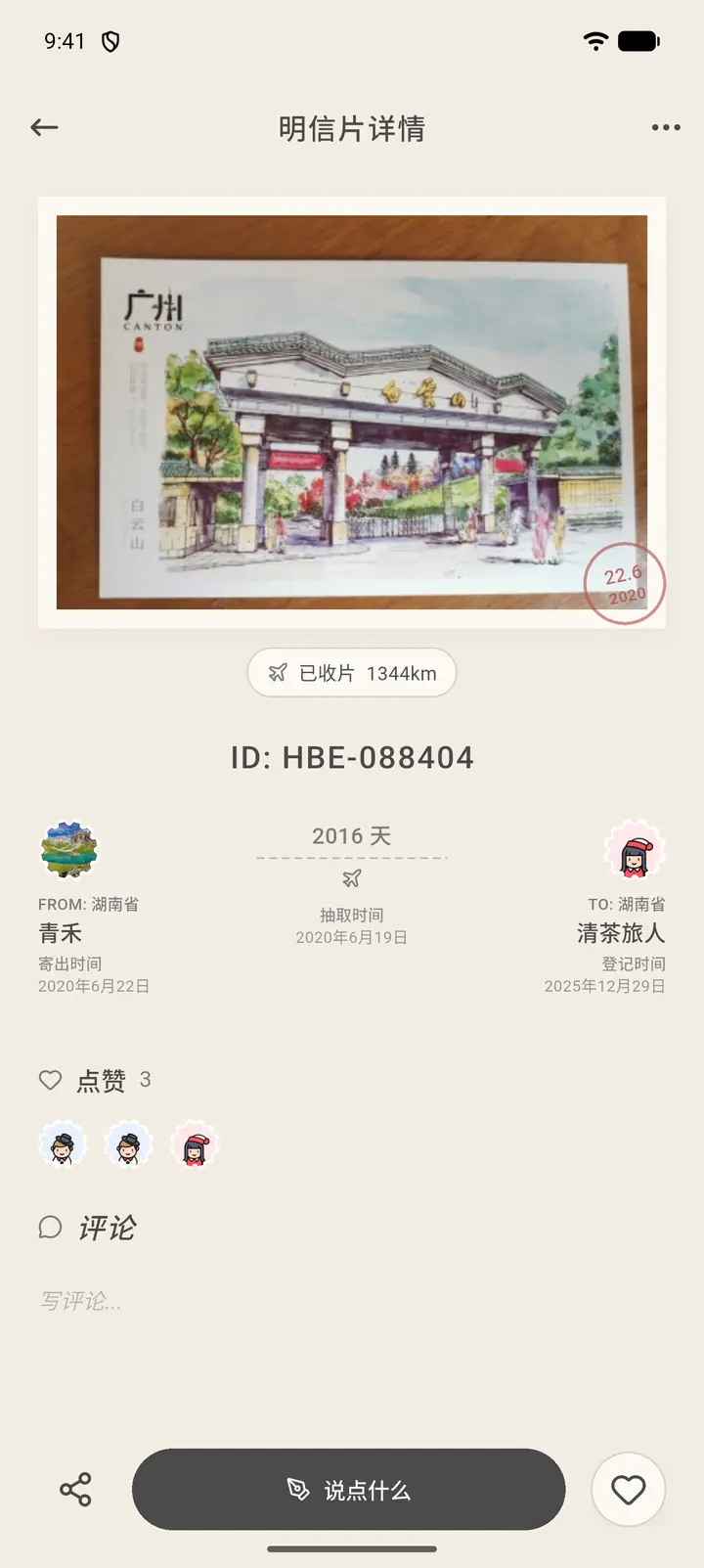
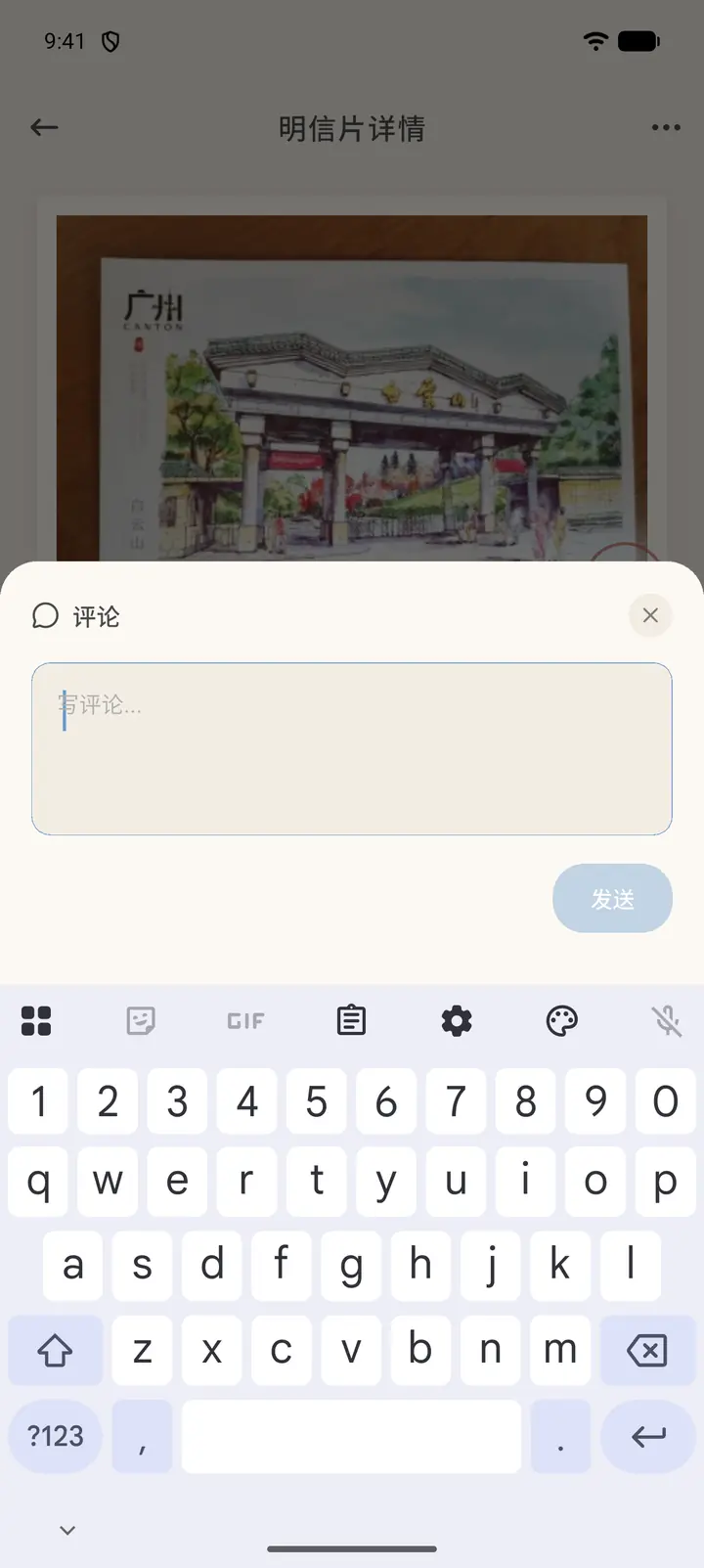
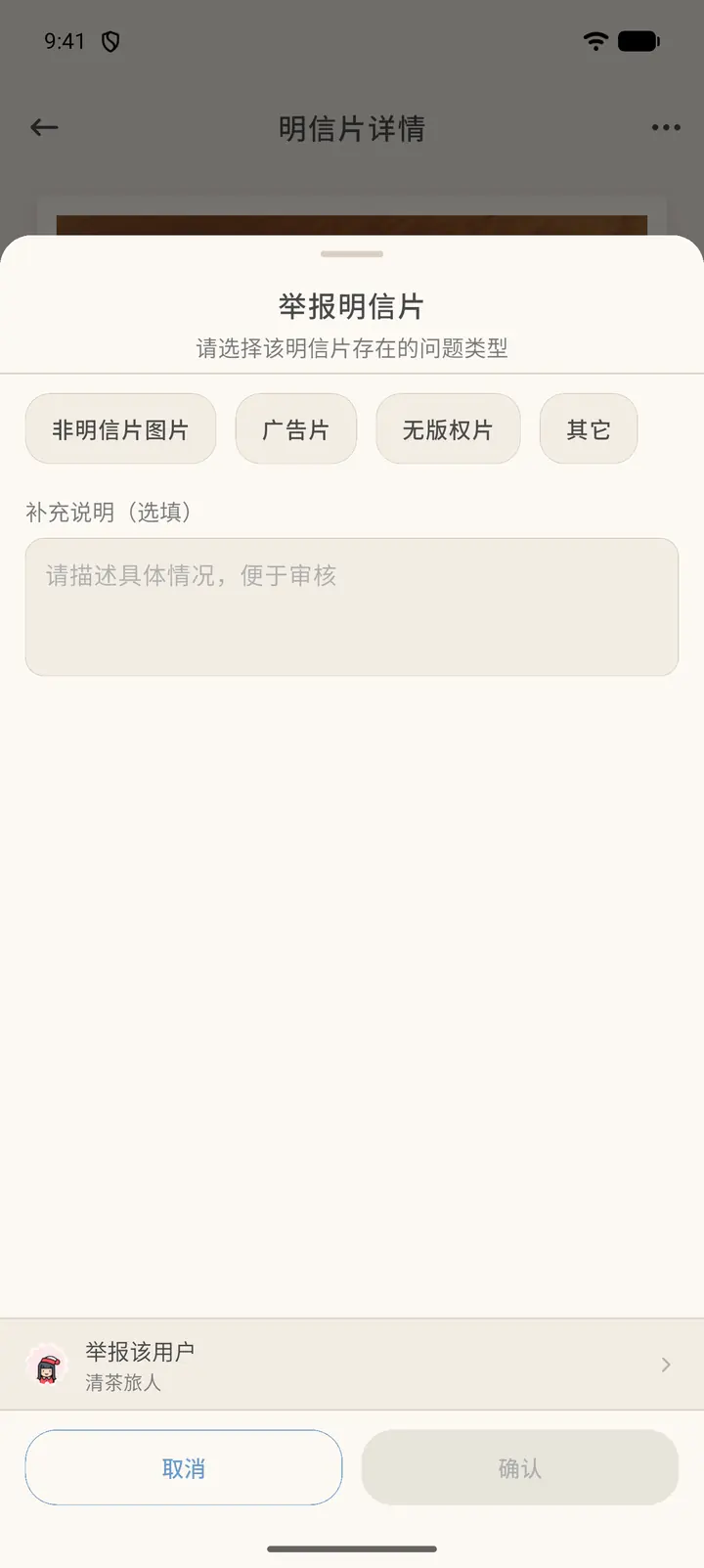
Say something (「说点什么」) at the bottom writes a comment, the heart button at the bottom right likes the card, and the button at the bottom left shares it. The "…" at the top right lets you report the postcard: pick a problem type (not a postcard image, advertising card, copyright-infringing card, other), add a note if you like, and you can report the user at the same time.
-
Two buttons sit at the bottom: Send Card (「我要寄片」) starts the sending flow, and Register (「登记明信片」) is for registering a card you've received.
When a card from someone else arrives, tap Register to open the registration page. Upload a photo of the card you received (you can replace it) and write a short message to the sender (the page tells you whether the message will be public). The page also shows the send date, how many kilometers the card traveled and how many days it took. When everything looks right, tap Sign & Register (「签收并登记」) and confirm once more to finish.
-
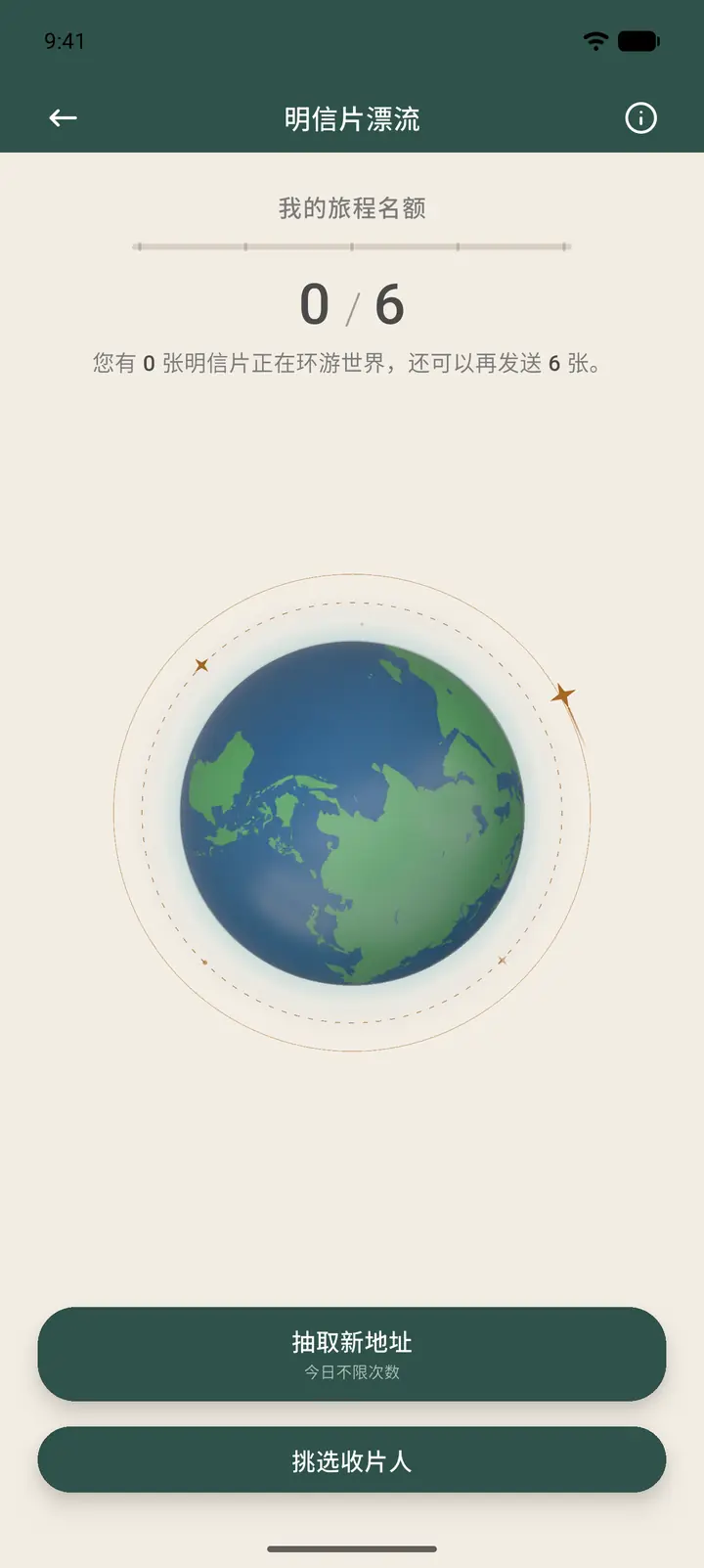
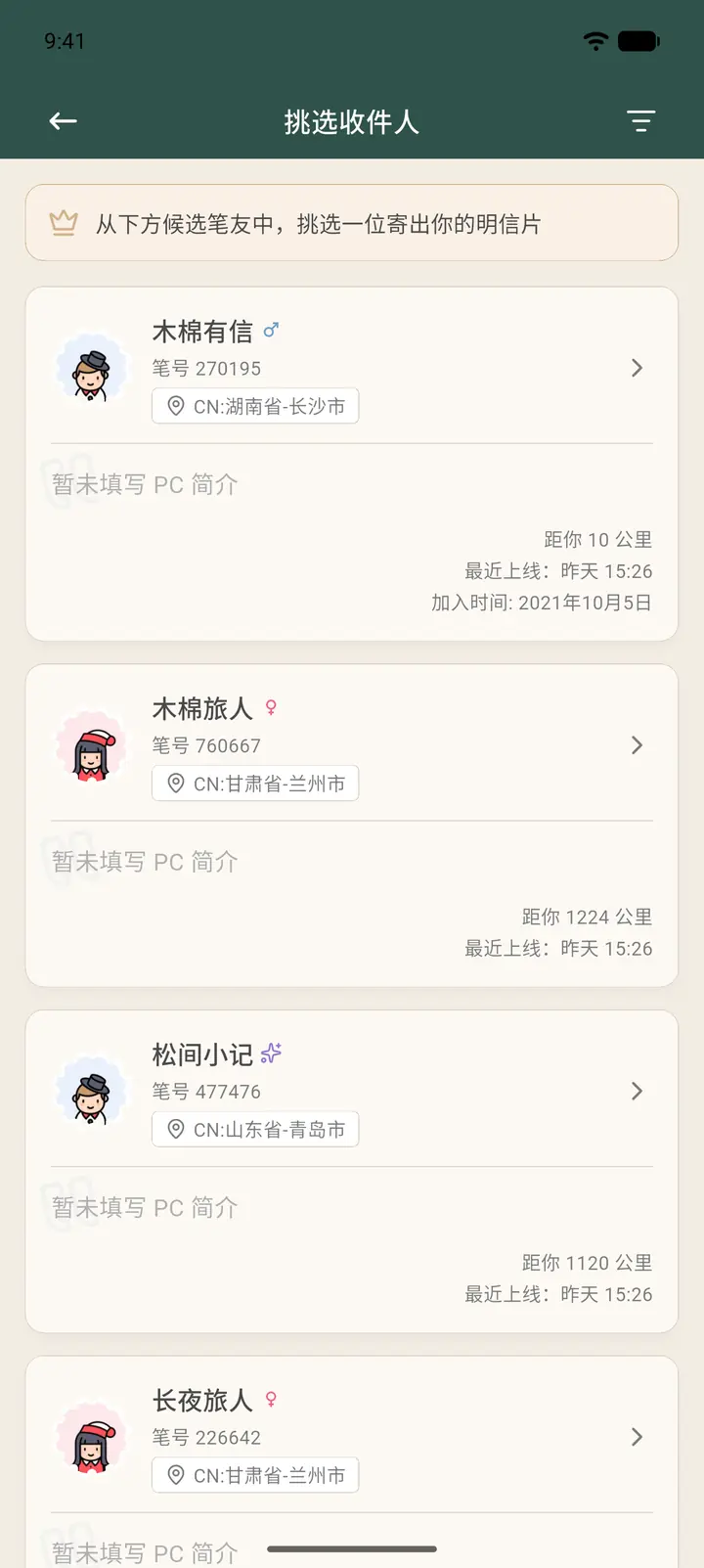
At the top of the sending page, My Journey Slots (「我的旅程名额」) shows how many more cards you can send (for example 0 / 6). There are two buttons below: Draw a New Address (「抽取新地址」) lets the system randomly assign a recipient — there is no daily limit on draws — and Pick a Recipient (「挑选收片人」) lets you choose from a list of candidate pen pals, where you can see their join date, number of cards received and sent, credit score and PC bio.
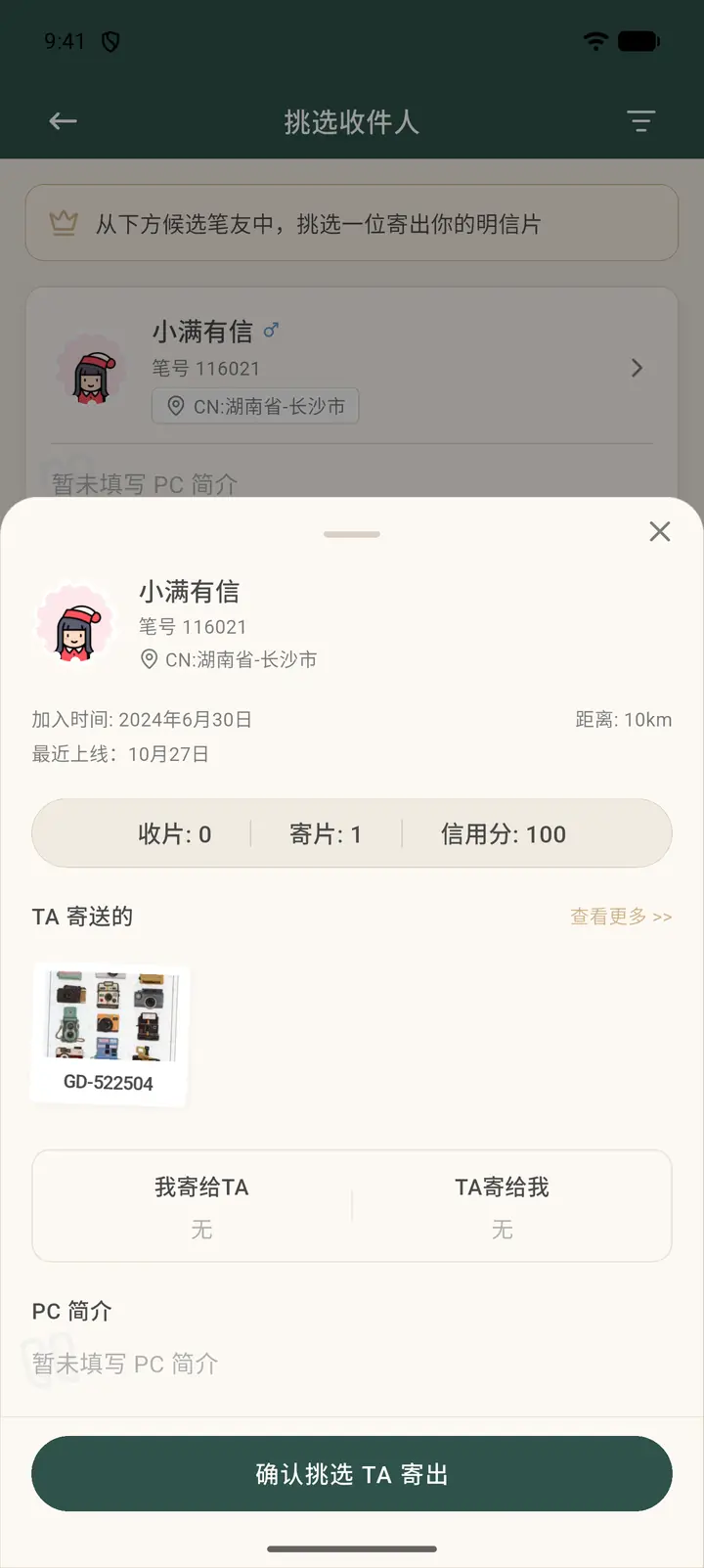
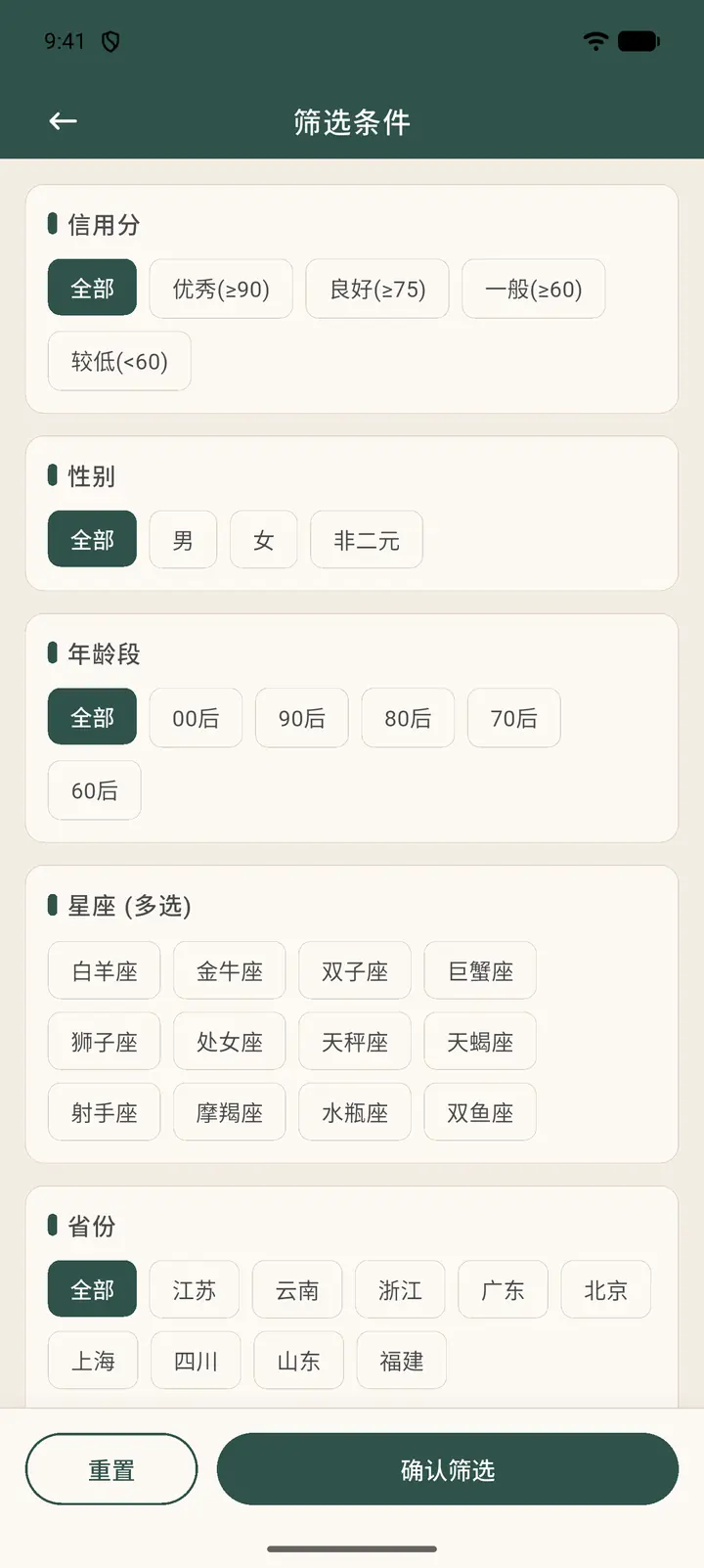
Tap a candidate to see their details: join date, distance, last online, cards received and sent, credit score, the postcards they have sent, your own exchange history with them, and their PC bio. Once you're sure, tap Confirm picking them to send (「确认挑选 TA 寄出」) at the bottom. The filter icon at the top right narrows the list by credit score, gender, age group, zodiac sign and province.
-
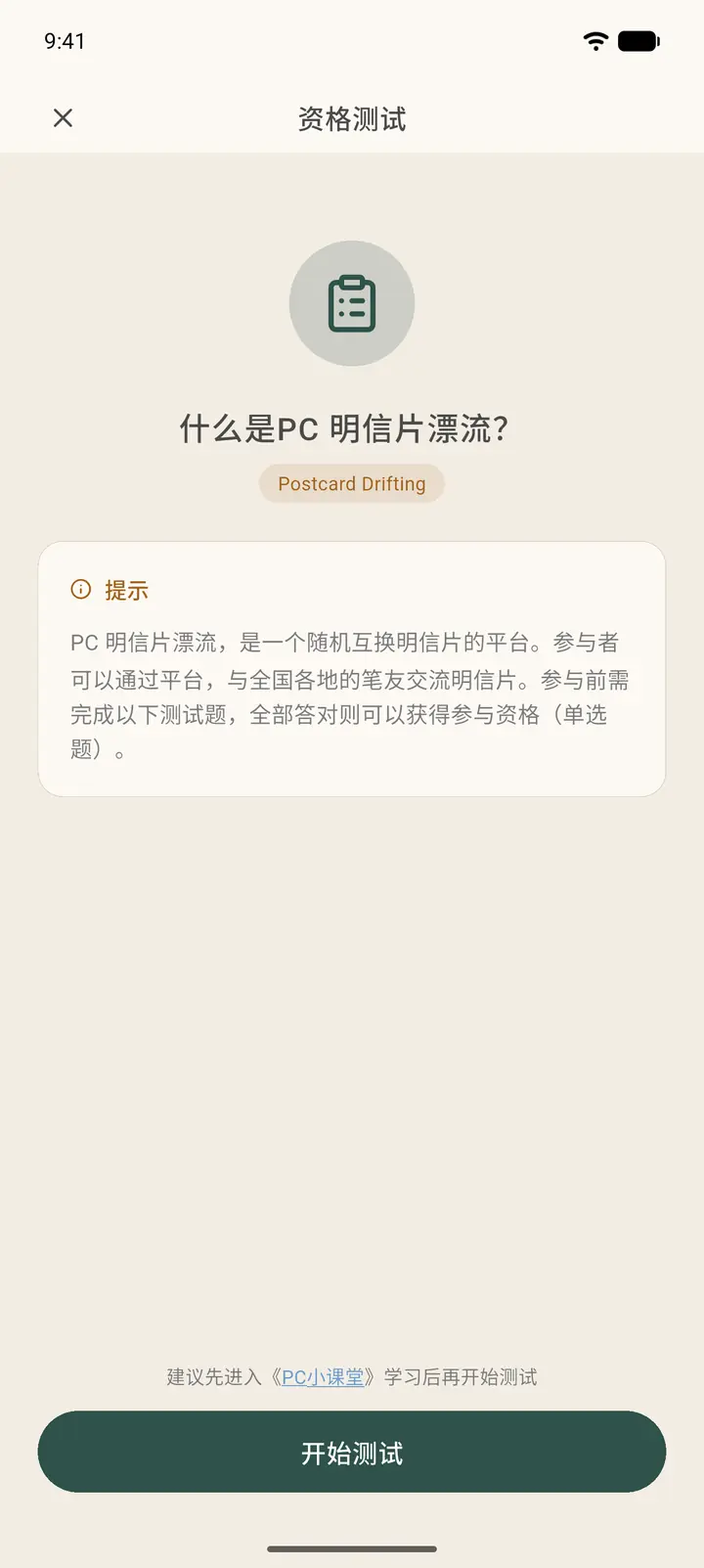
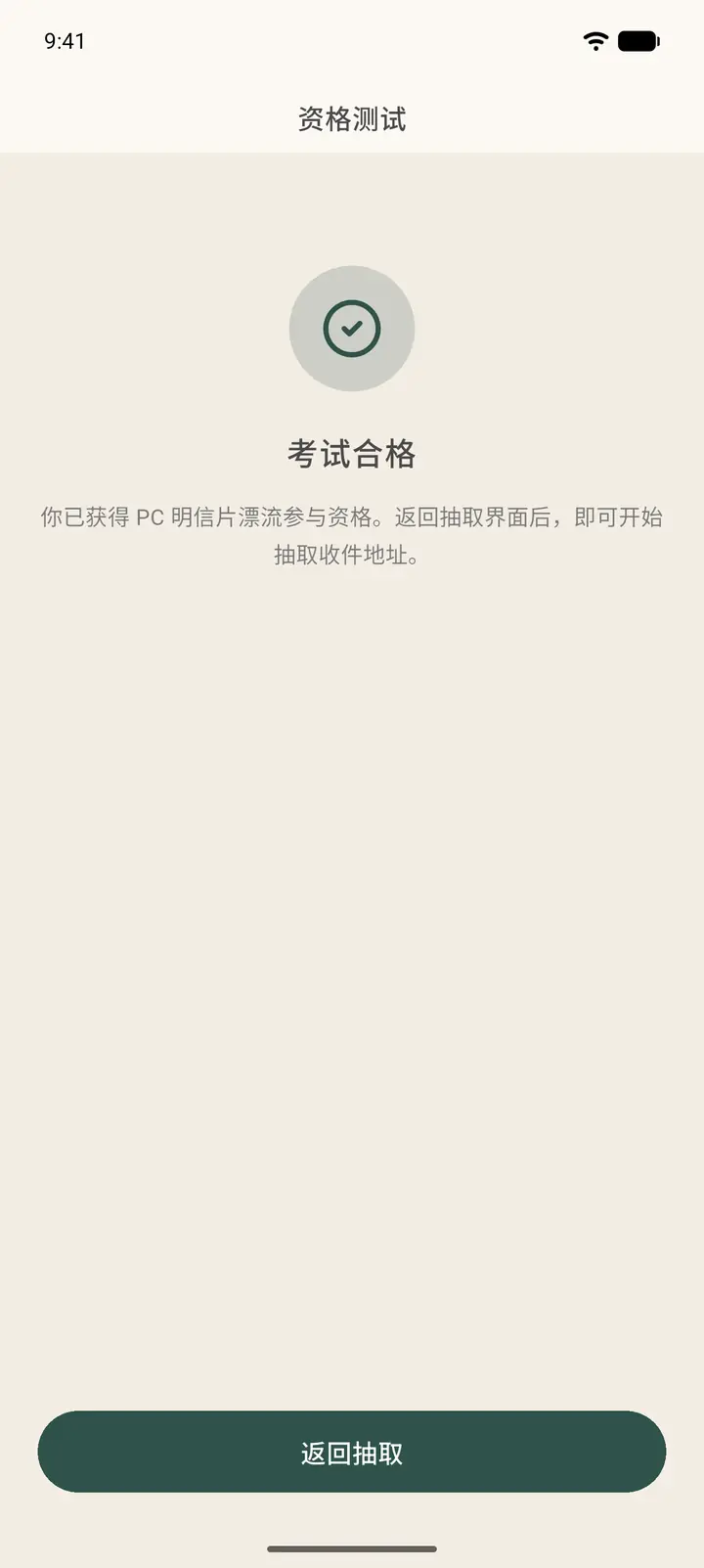
The first time you take part, you need to pass the Qualification Test (「资格测试」). Before you tap Start Test (「开始测试」), you'll see an intro page: PC is a platform for randomly swapping postcards, and you need to answer 20 single-choice questions, all correctly, to qualify. The bottom of the page suggests studying the PC Classroom first (「建议先进入《PC小课堂》学习后再开始测试」), so it's best to read the rules before you answer. Once you've answered everything correctly, you'll see You're qualified (「考试合格」); tap Back to draw (「返回抽取」) to continue.
-
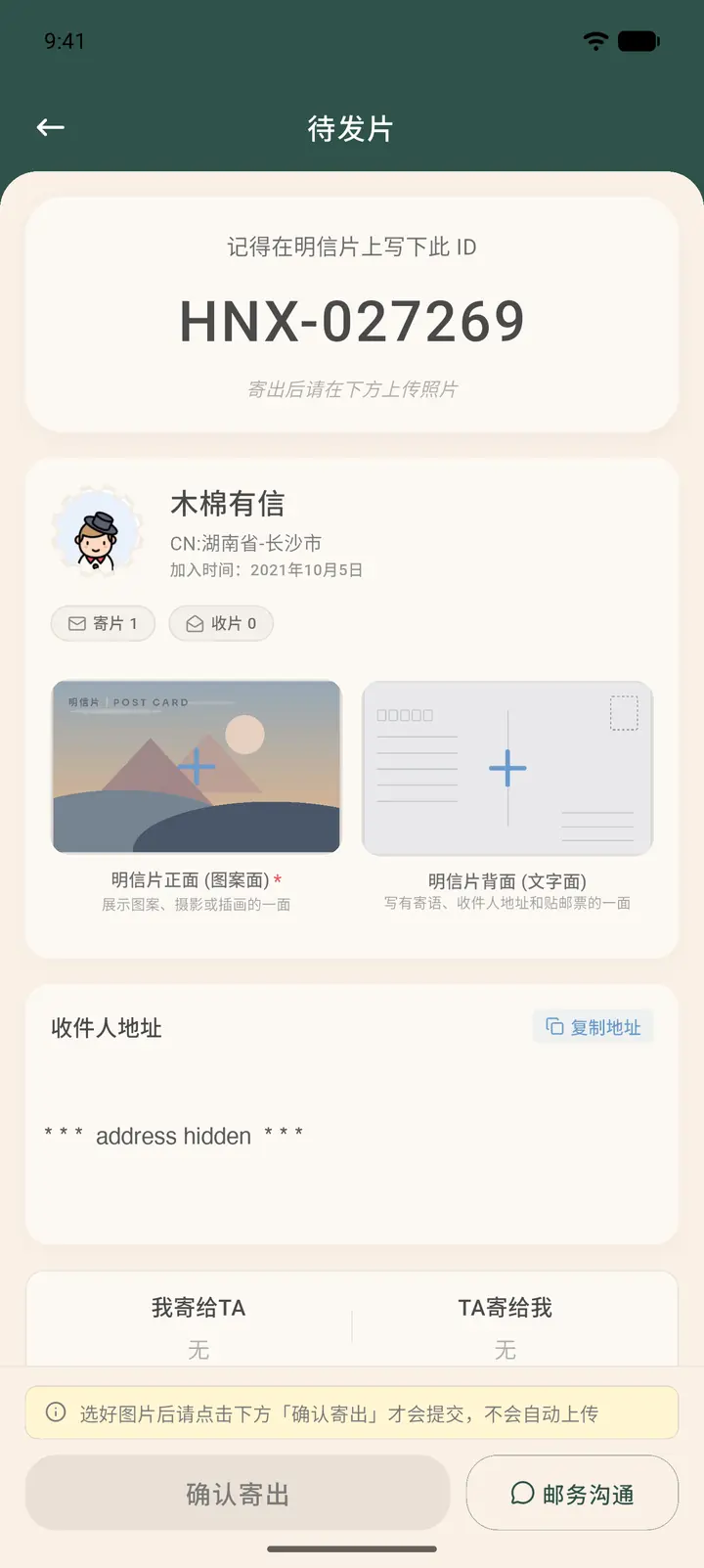
Once you've chosen a recipient, the system generates a unique ID for this card (the POSTID, such as HNX-027269) and shows the recipient's pen name and address. Tap Go to send (「去寄送」) to go to To Send (「待发片」), or tap Draw again (「继续抽取」) to get a different recipient. Each recipient you draw uses up one mailbag.
-
At the top of the To Send page is the ID to write on your postcard. In the middle, upload two photos: the front of the postcard (「明信片正面」, the picture side, required) and the back (「明信片背面」, the side with the message, recipient address and stamp — recommended, as proof if the card gets lost). Below that is the recipient's address, which you can copy with Copy Address (「复制地址」). After choosing your photos, tap Confirm send (「确认寄出」) at the bottom to submit. If you have questions, tap Postal chat (「邮务沟通」).
-
Confirm send only records the card in the app. You still need to write the postcard by hand according to the address, put on enough postage and drop the physical card in a mailbox. Once the recipient receives it and registers the ID, your mailbag is restored.
-
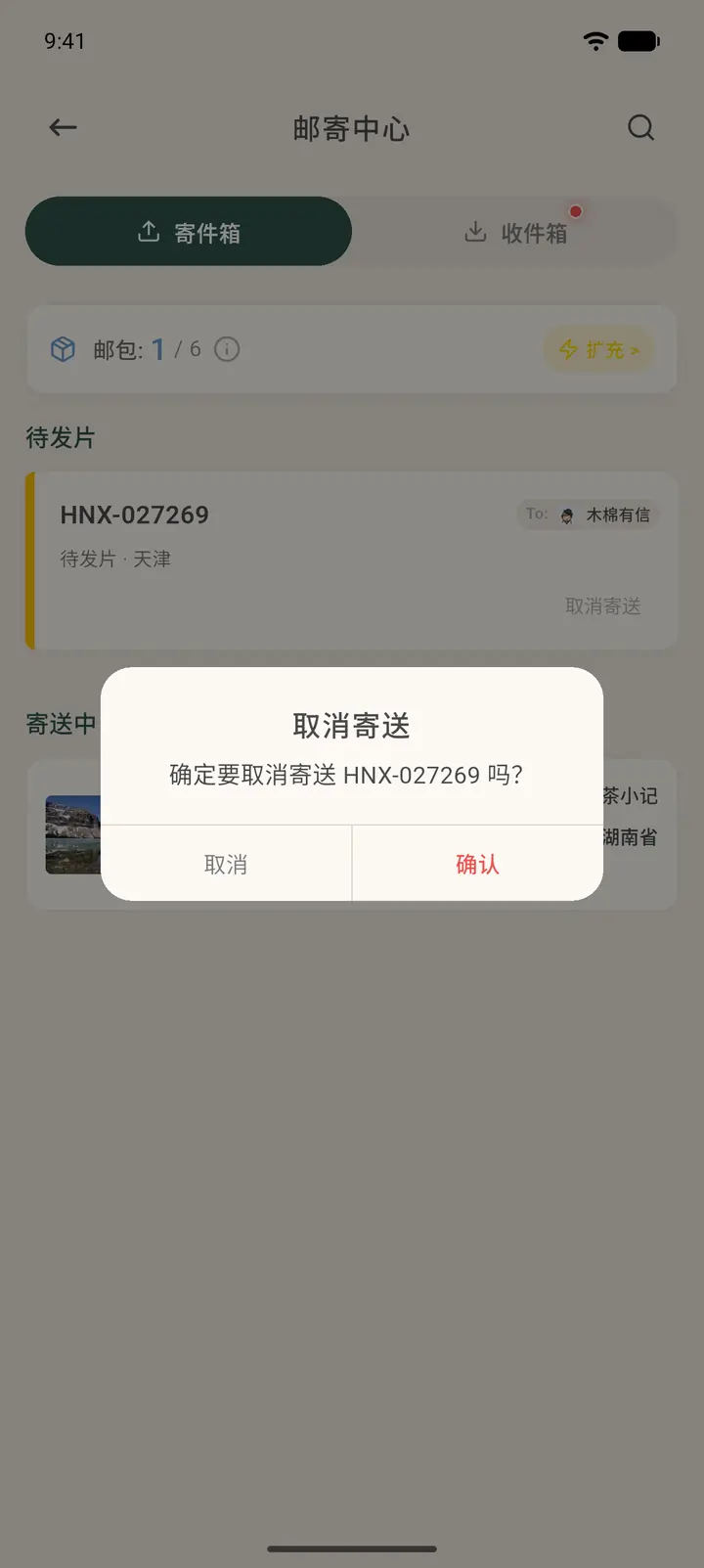
If you've drawn an address but don't want to send right now, go to Mailing Center → Outbox. On the bottom right of the card in To Send, tap Cancel Sending (「取消寄送」). After you confirm, your mailbag is restored and the recipient's reserved voucher is returned. If you leave a card unconfirmed for too long, the system also releases it automatically.
-
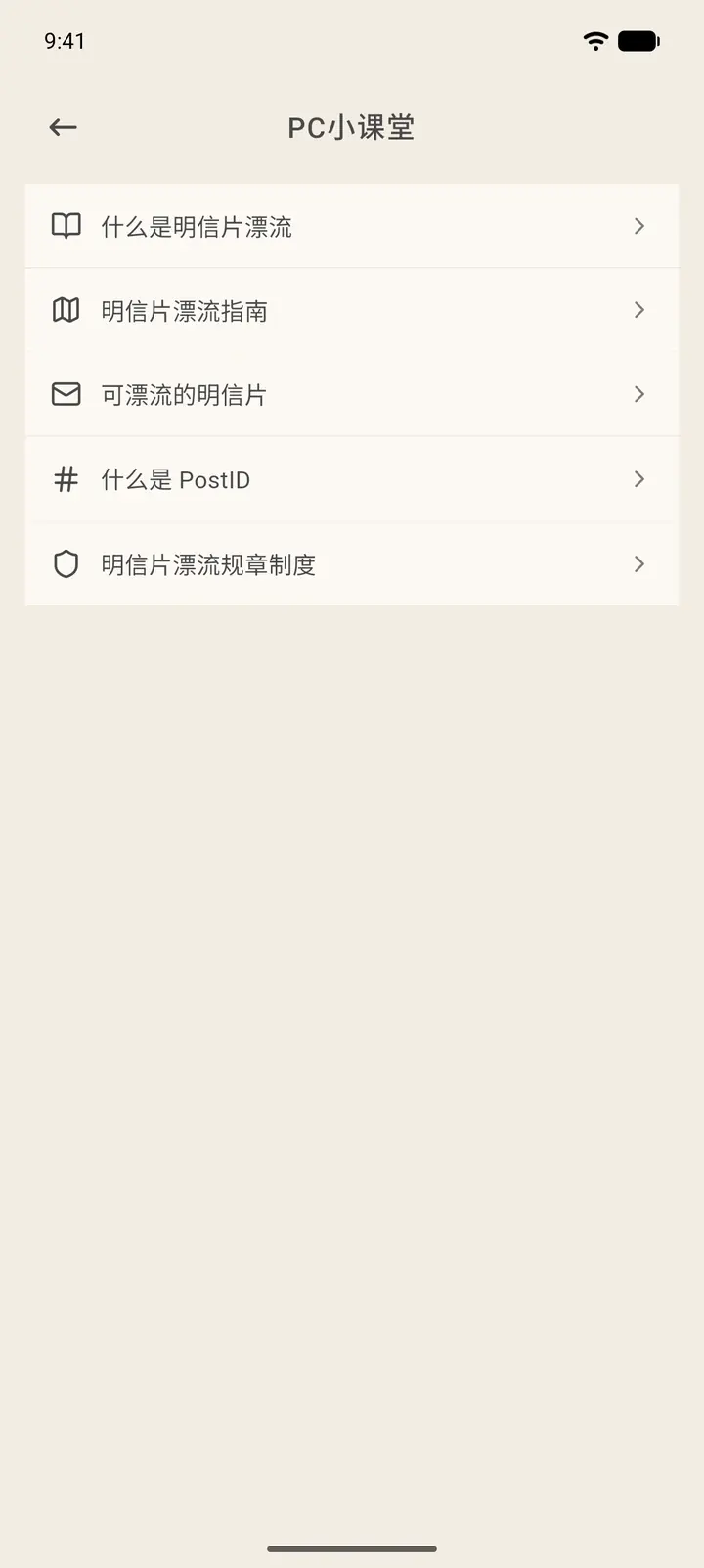
In the top right of the Home page, Tips (「PC课堂」) has five articles: what postcard exchange is, the drifting guide, which postcards can drift, what a PostID is, and the drifting rules. They open as web pages, and we recommend reading them before your first time.
-
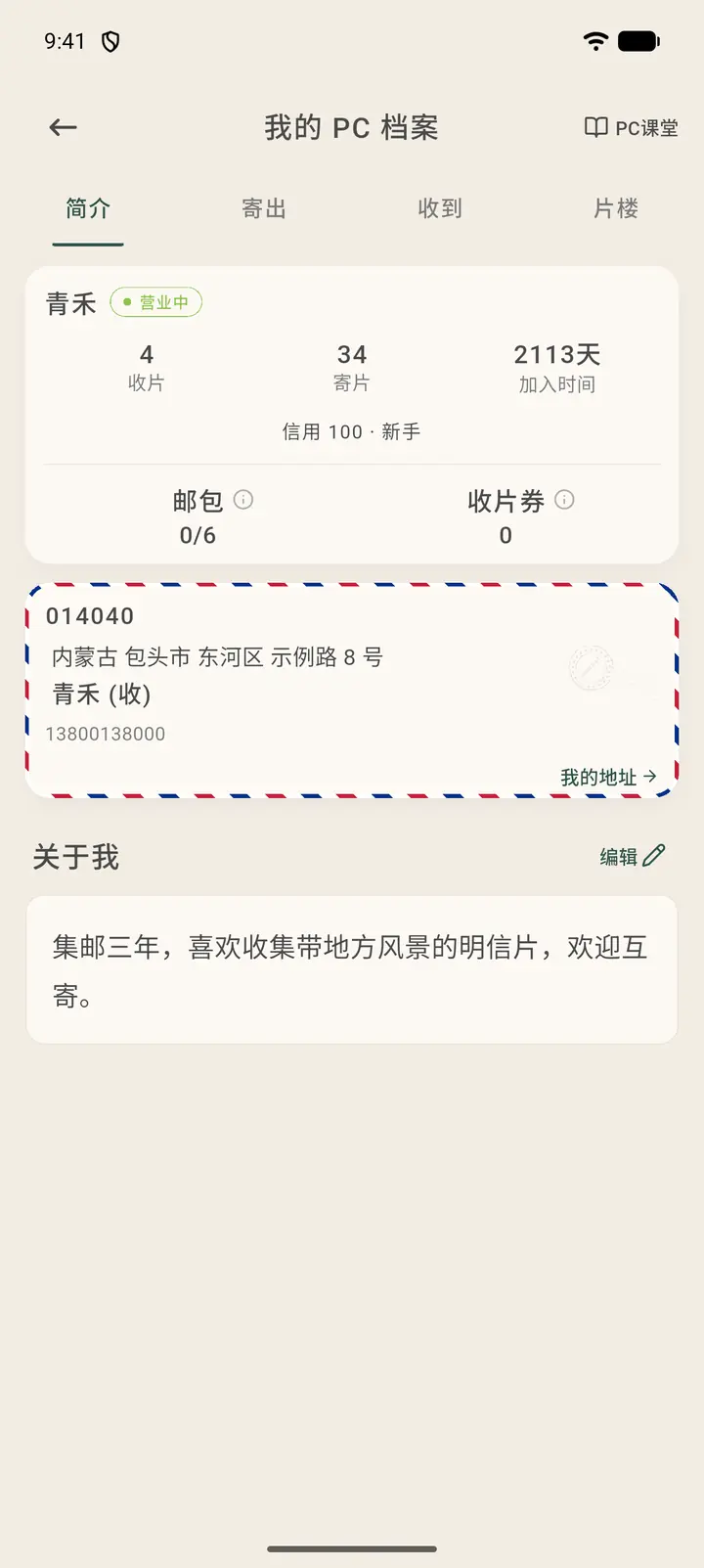
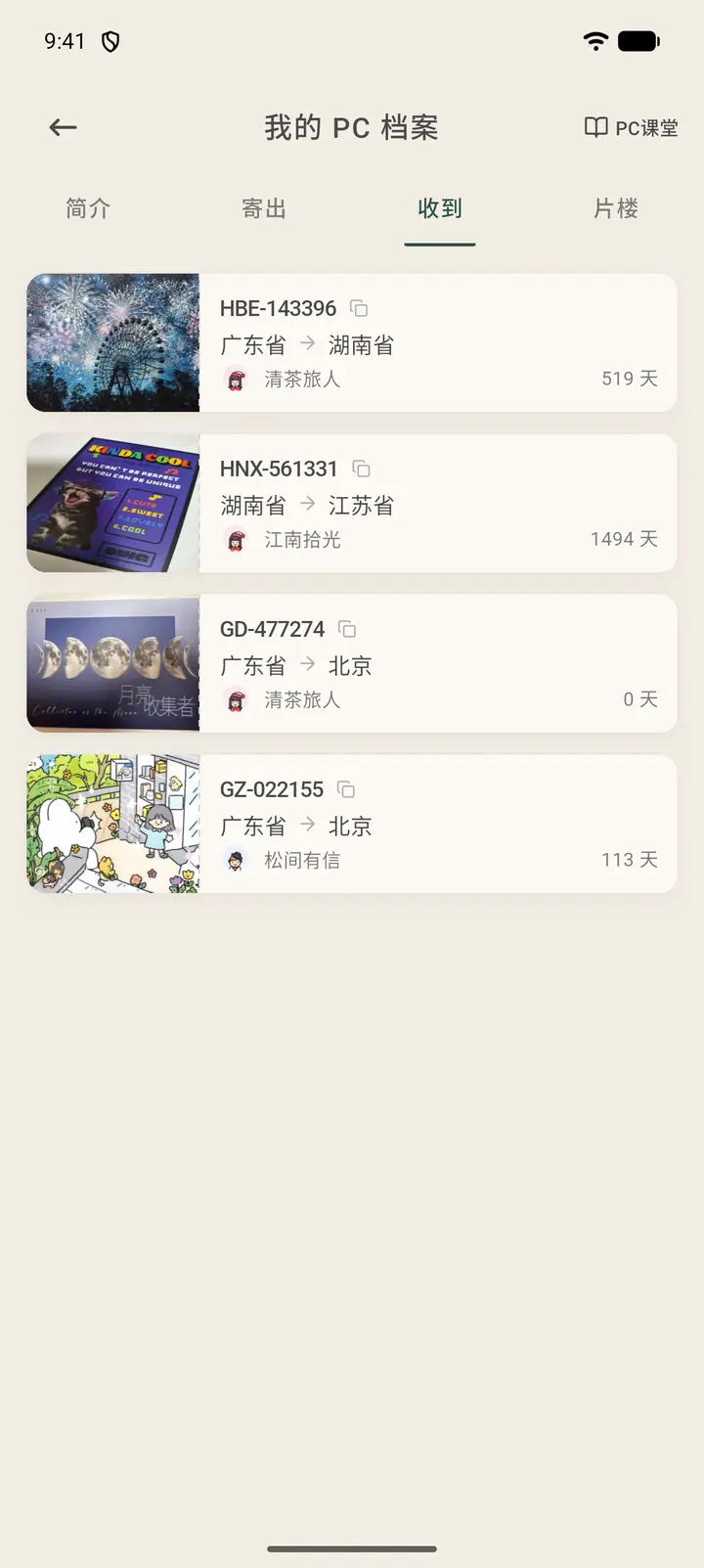
Tap View PC Profile (「查看 PC 档案」) on the Home page to open My PC Profile (「我的 PC 档案」), which has four tabs: Bio (「简介」), Sent (「寄出」), Received (「收到」) and Gallery (「片楼」). The Bio tab shows your status, the number of cards you've received and sent, how many days you've been a member, your credit score, and your mailbags and vouchers. Below that are your receiving address and About Me (「关于我」); tap Edit (「编辑」) to change your bio.
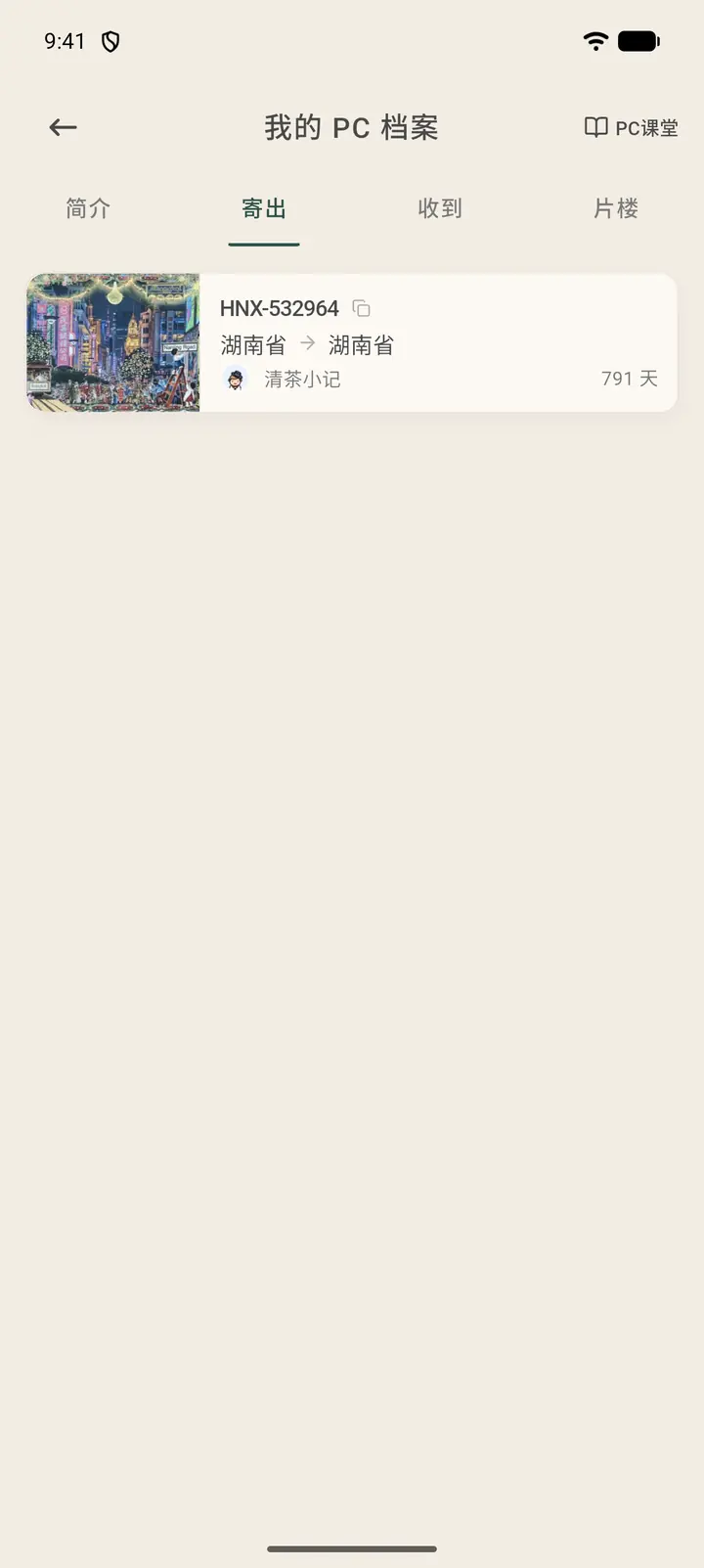
The Sent tab lists every card you've sent in time order: thumbnail, ID, start and end provinces, recipient and days drifted. The Received tab does the same for cards others have sent you.
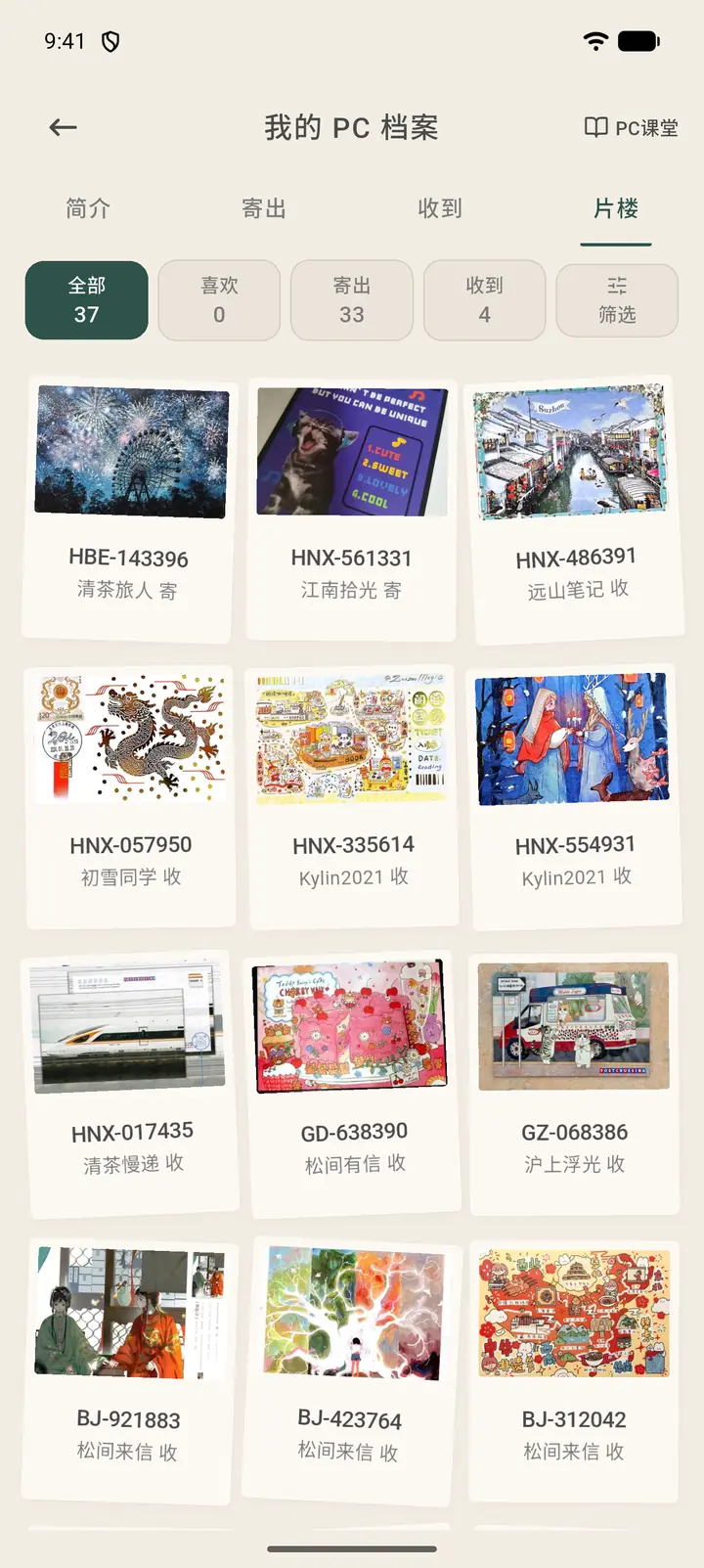
Gallery lays out the cards you've sent and received as a photo wall. At the top you can filter by Likes (「喜欢」), Sent or Received, and Filter (「筛选」) in the top right narrows things down further. Tap any card to open its details.
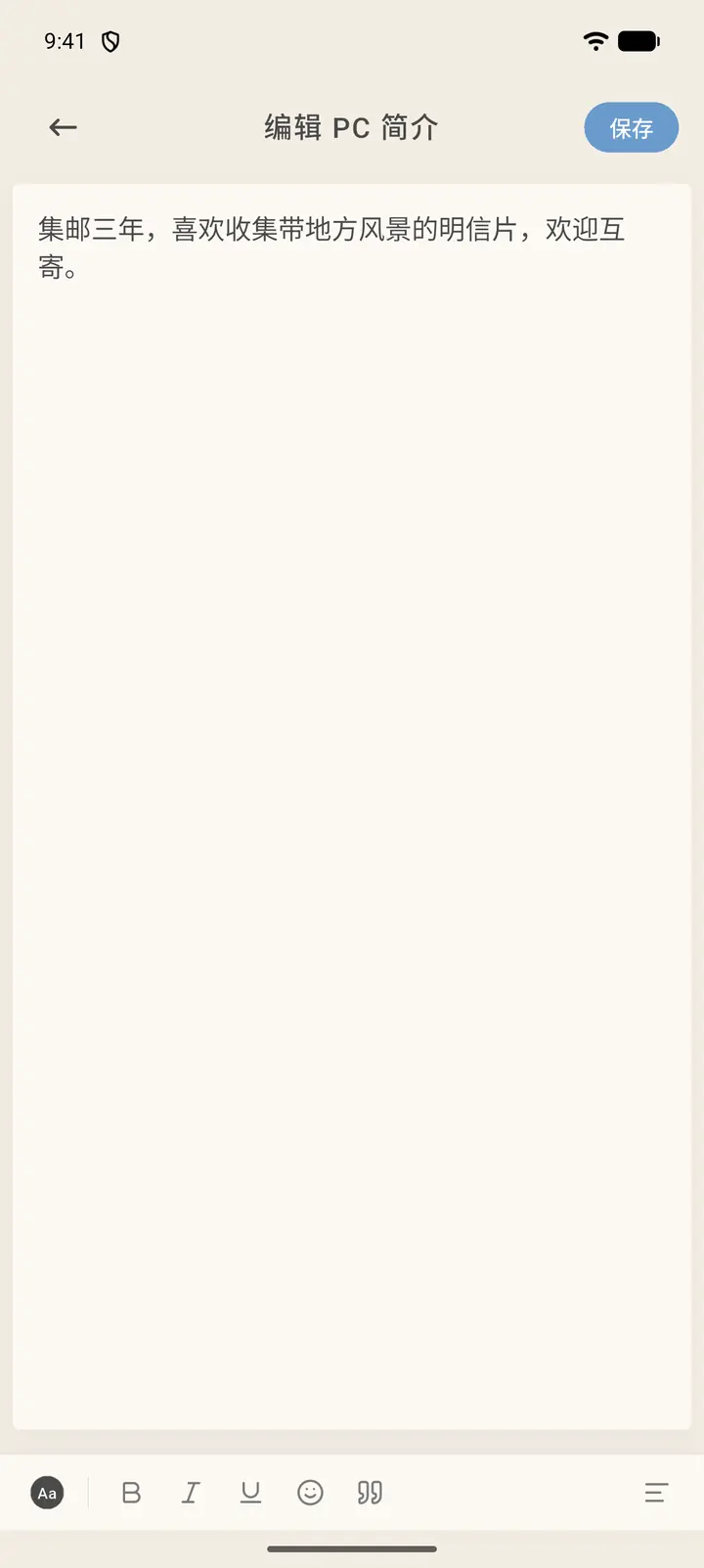
Tap Edit (「编辑」) next to About Me (「关于我」) to change your PC bio, then tap Save (「保存」) at the top right.
Result
After you register a received card, it counts toward your received total and adds mileage for the sender.
FAQ
What is the ID HNX-265498? It's the ID of this postcard. The first three letters are the sender's postcard prefix.
How do I handle postage? Put on enough postage according to the destination's postal rules, or use a valid prepaid postcard.
I still have a card to send. Can I draw a new address? No. You need to send the pending card first.
A card I'm expecting hasn't arrived for a long time. Use the Report Lost (「报失」) flow in the app to make a record. The risks of physical mail are shared by both participants, and the platform doesn't guarantee delivery.
What happens if I don't register a card I've received? Others may be temporarily unable to draw your address, and your receiving credit may be affected.